Comparison between Touch vs Non-Touch Screen Laptop
Published: 19 Sep 2026
Touchscreen laptops allow users to tap, swipe, write, and draw directly on the display, while non-touch models depend on a keyboard, mouse, or touchpad. Touch models often provide more flexibility, but they can cost more and use extra battery power. This Touch vs Non-Touch Screen Laptop comparison will explain their features, benefits, limitations, and best uses.
1. What Is a Touch Screen Laptop?
A touch screen laptop is a portable computer that allows users to control the device by touching the display with a finger or compatible stylus. You can tap icons, scroll through pages, zoom in or out, draw, write notes, and select items directly on the screen. Many touch models also support convertible or 2-in-1 designs, allowing the laptop to work in tablet, tent, or stand mode. These laptops still include a keyboard and touchpad, so users can switch between touch and traditional controls. They are commonly used by students, artists, designers, presenters, and people who prefer direct screen interaction. In a Touch vs Non-Touch Screen Laptop comparison, the touchscreen model offers more flexibility but may cost more and use additional battery power.
2. What Is a Non-Touch Screen Laptop?
A non-touch screen laptop is a portable computer that does not support direct finger or stylus input on the display. Users control it through the keyboard, touchpad, or an external mouse. These laptops usually have a traditional clamshell design and are commonly used for office work, studying, programming, gaming, browsing, and entertainment. Non-touch models are often more affordable, lighter, and more energy-efficient than touchscreen laptops with similar specifications. They may also offer matte or anti-glare displays, which can reduce reflections during long working sessions. In a Touch vs Non-Touch Screen Laptop comparison, a non-touch model is a practical choice for users who prefer traditional controls, longer battery life, and better value for money.
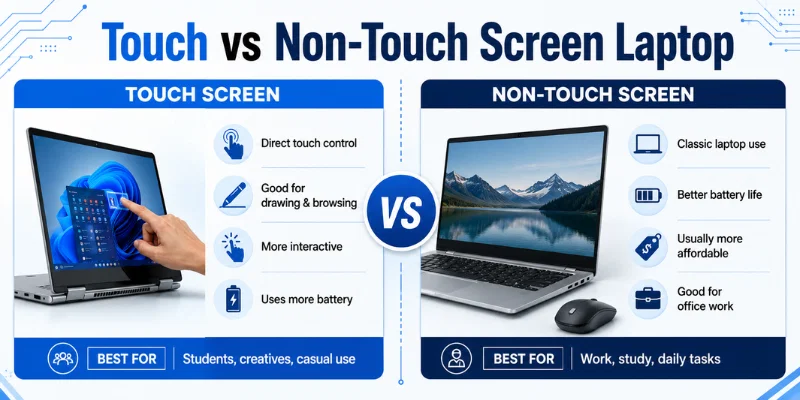
3. Touch vs Non-Touch Screen Laptop Comparison
A touchscreen laptop allows direct control through fingers or a compatible stylus, while a non-touch model depends on a keyboard, touchpad, or external mouse. Both options are useful, but they serve different users. The table below explains the main differences in simple words.
In a Touch vs Non-Touch Screen Laptop comparison, the touchscreen option is better for creative work, direct navigation, and flexible use. A non-touch model is more suitable for users who prefer longer battery life, lower cost, lighter weight, and traditional controls.
| Feature | Touchscreen Laptop | Non-Touchscreen Laptop |
| Input Method | Finger, stylus, keyboard, and touchpad | Keyboard, touchpad, and mouse |
| Ease of Navigation | Direct tapping, scrolling, and zooming | Traditional cursor-based control |
| Stylus Support | Available on compatible models | Not supported directly on the screen |
| Drawing and Writing | Suitable for notes, sketches, and digital art | Requires a separate drawing tablet |
| Design | Often available in 2-in-1 or convertible form | Usually has a standard clamshell design |
| Battery Life | May use more power | Often provides longer battery life |
| Weight | Can be slightly heavier | Usually lighter |
| Price | Generally more expensive | Often more affordable |
| Screen Surface | Commonly glossy and reflective | Often available with matte or anti-glare coating |
4. Difference Between Touch and Non-Touch Screen Laptop
Touch and non-touch laptops may look similar, but they differ in control, design, battery use, price, and daily experience. The following eight points explain the main differences in simple words.
1. Input Method
A touchscreen laptop allows users to tap, swipe, zoom, draw, and write directly on the display. It may also support a compatible stylus for more accurate control. A non-touch laptop depends on a keyboard, touchpad, or external mouse for navigation.
2. Ease of Navigation
Touchscreen models make simple actions such as opening apps, scrolling pages, and selecting items feel direct and quick. This can be useful for users who are familiar with smartphones and tablets. Non-touch laptops offer traditional cursor control, which is often more accurate for detailed work.
3. Design and Flexibility
Many touchscreen laptops come in convertible or 2-in-1 designs. Their screens may fold backward or detach, allowing the device to work in tablet, tent, or stand mode. Non-touch laptops usually use a standard clamshell design with fewer flexible positions.
4. Battery Life
The touch-sensitive layer remains active while the laptop is running and may use additional power. Many touchscreen displays are also glossy and may require higher brightness in bright rooms. Non-touch models often provide longer battery life when other specifications are similar.
5. Weight and Portability
Touchscreen laptops may be slightly heavier because of the extra touch layer, protective glass, and stronger hinges. Convertible models can also have more complex construction. Non-touch laptops are often lighter and more convenient for students and frequent travellers.
6. Price and Value
Touchscreen technology usually increases the total price of a laptop. Users may need to pay extra for stylus support, flexible hinges, and a premium display. In a Touch vs Non-Touch Screen Laptop comparison, non-touch models often provide stronger hardware at the same budget.
7. Display Surface and Maintenance
Most touchscreen laptops use a glossy surface that provides bright colors but can reflect light. Frequent touching also leaves fingerprints and smudges, so regular cleaning is needed. Non-touch laptops are commonly available with matte or anti-glare displays that stay cleaner and reduce reflections.
5. Advantages and Disadvantages of Touch Screen Laptop
A touchscreen laptop offers direct control, flexible use, and better support for creative tasks. However, it may also cost more, use extra battery power, and require careful maintenance. The following five points explain both sides clearly.
1. Direct and Easy Control
Advantage: A touchscreen laptop allows users to tap, swipe, scroll, and zoom directly on the display. This can make navigation faster and more natural, especially for people familiar with smartphones and tablets.
Disadvantage: Touch control may be less accurate for detailed tasks such as selecting small text, editing spreadsheets, or working with complex software. Many users still prefer a mouse or touchpad for precise work.
2. Better for Drawing and Note-Taking
Advantage: Compatible touchscreen laptops support a stylus for writing notes, drawing, signing documents, and marking PDFs. This makes them useful for students, artists, teachers, and designers.
Disadvantage: Not every touchscreen laptop supports an active stylus or pressure sensitivity. A compatible digital pen may also need to be purchased separately.
3. Flexible 2-in-1 Design
Advantage: Many touchscreen laptops can fold, rotate, or detach to work in laptop, tablet, tent, or stand mode. This flexibility is useful for presentations, entertainment, reading, and travel.
Disadvantage: Convertible hinges and extra display layers can make the laptop heavier and more complex. These parts may also require more careful handling over time.
4. Higher Price and Power Use
Advantage: The touch feature adds convenience and can replace the need for a separate tablet in some situations. Users get both traditional laptop controls and direct screen interaction in one device.
Disadvantage: Touchscreen models are usually more expensive than similar non-touch laptops. The active touch layer and bright glossy display may also reduce battery life.
5. Screen Maintenance and Repair
Advantage: Touchscreens provide a modern and interactive experience for browsing, learning, and entertainment. They can be especially helpful for users who find traditional controls difficult.
Disadvantage: Frequent touching leaves fingerprints, smudges, and marks on the display. If the touch layer becomes damaged, repair or full screen replacement can be costly.
In a Touch vs Non-Touch Screen Laptop comparison, a touchscreen model is better for users who need direct interaction, drawing, note-taking, or flexible viewing modes. However, buyers should also consider the higher price, battery use, extra weight, and repair cost.
6. Advantages and Disadvantages of Non-Touch Screen Laptop
A non-touch screen laptop offers a simple design, longer battery life, and better value for traditional computer users. However, it does not support direct screen control, handwriting, or stylus-based creative work. The following five points explain its main advantages and disadvantages.
1. Lower Price and Better Value
Advantage: A non-touch screen laptop is usually more affordable than a touchscreen model with similar specifications. Buyers may get a better processor, more storage, or additional RAM within the same budget.
Disadvantage: Users do not get touch controls or stylus support. Anyone who later needs these features may have to purchase a separate drawing tablet or touchscreen monitor.
2. Longer Battery Life
Advantage: A non-touch display does not need an active touch-sensitive layer. This can reduce power consumption and help the laptop run longer between charges.
Disadvantage: Actual battery life still depends on screen brightness, processor, battery size, and daily use. A non-touch model does not automatically guarantee excellent battery performance.
3. Lighter and Simpler Design
Advantage: Non-touch laptops often have fewer display layers and a standard hinge design. This can make them lighter, easier to carry, and suitable for students or frequent travellers.
Disadvantage: Most models have a traditional clamshell structure and cannot work in tablet, tent, or stand mode. This reduces flexibility during presentations, reading, and entertainment.
4. Cleaner and More Comfortable Display
Advantage: Users do not need to touch the display, so it collects fewer fingerprints and smudges. Many non-touch laptops also offer matte or anti-glare screens that reduce reflections in bright rooms.
Disadvantage: Users cannot tap icons, scroll pages, or zoom directly on the display. All navigation depends on a keyboard, touchpad, or external mouse.
5. Easier and Cheaper Repairs
Advantage: A non-touch screen has a simpler structure than a touchscreen panel. If it becomes damaged, replacement is often easier and less expensive.
Disadvantage: It does not support handwriting, digital drawing, or direct document annotation. Creative users may find it less convenient for design, note-taking, and interactive applications.
In a Touch vs Non-Touch Screen Laptop comparison, the non-touch option is better for users who prefer lower cost, longer battery life, lighter weight, and traditional controls. However, it may not be suitable for people who need stylus support, direct interaction, or flexible 2-in-1 features.
7. Touch vs Non-Touch Laptop for Students
Students should choose a laptop based on how they study, take notes, complete assignments, and carry the device. A touchscreen model offers more flexibility, while a non-touch laptop usually provides better battery life and value.
Touchscreen Laptop for Students
A touchscreen laptop is useful for students who prefer handwritten notes, drawing, highlighting, and direct interaction with educational apps. It works well for art, design, mathematics, presentations, and reading digital books. A compatible stylus can also help students write formulas, mark PDFs, and create diagrams more easily.
However, touchscreen laptops are usually more expensive and may use more battery power. Their glossy displays can collect fingerprints and create reflections in bright classrooms. They may also be slightly heavier than similar non-touch models.
Non-Touch Laptop for Students
A non-touch laptop is a practical choice for students who mainly type assignments, attend online classes, browse the internet, and prepare presentations. It often provides longer battery life, lower cost, and better hardware within the same budget. Many models also include matte screens, which can reduce glare during long study sessions.
The main limitation is that students cannot write or draw directly on the display. They must use a keyboard, touchpad, mouse, or a separate drawing tablet. This may be less convenient for creative subjects and handwritten digital notes.
Which One Is Better for Students?
In a Touch vs Non-Touch Screen Laptop comparison, a touchscreen model is better for art students, designers, note-takers, and users who need a flexible 2-in-1 device. A non-touch laptop is more suitable for general students who focus on typing, research, online learning, programming, and budget-friendly performance. Students should compare battery life, weight, stylus support, specifications, and price before choosing.
8. Touch vs Non-Touch Laptop for Office Work
Office users should choose a laptop based on daily tasks such as emails, documents, meetings, presentations, spreadsheets, and remote work. A touchscreen model offers flexible interaction, while a non-touch laptop usually provides better battery life, lower cost, and a more traditional working experience.
Touchscreen Laptop for Office Work
A touchscreen laptop is useful for professionals who attend meetings, give presentations, sign documents, or review files directly on the display. It allows users to tap, scroll, highlight, and annotate content without depending only on a mouse or touchpad. A 2-in-1 model can also work in tablet or tent mode, which is helpful during presentations and client discussions.
However, touchscreen laptops are often more expensive and may use more battery power. Their glossy screens can collect fingerprints and create reflections under office lights. For long typing, spreadsheet work, and detailed tasks, many users may still prefer a keyboard and mouse.
Non-Touch Laptop for Office Work
A non-touch laptop is a practical choice for employees who mainly work with emails, documents, spreadsheets, accounting software, and web applications. It often provides longer battery life, a lighter design, and better hardware within the same budget. Many non-touch models also include matte displays, which can reduce glare during long working hours.
The main limitation is the lack of direct screen interaction. Users cannot tap icons, sign documents, or mark files directly on the display. They must depend on a keyboard, touchpad, mouse, or separate drawing device.
Which One Is Better for Office Users?
In a Touch and Non-Touch Screen Laptop comparison, a touchscreen laptop is better for presenters, managers, sales professionals, and users who regularly annotate or sign documents. A non-touch model is more suitable for writers, accountants, programmers, customer support teams, and employees who mainly perform traditional computer tasks. Office users should compare battery life, portability, display quality, repair cost, and actual feature needs before choosing.
9. Touch vs Non-Touch Laptop for Freelancers
Freelancers use laptops for different tasks such as writing, designing, video editing, online meetings, coding, and client communication. A touchscreen laptop offers more flexibility, while a non-touch model often provides better value, battery life, and traditional control.
Touchscreen Laptop for Freelancers
A touchscreen laptop is useful for freelancers who work in graphic design, illustration, photo editing, digital marketing, or content planning. It allows users to draw, highlight, sign documents, review designs, and present ideas directly on the display. A compatible stylus can also improve accuracy when creating sketches or editing visual content.
However, touchscreen laptops are usually more expensive and may use more battery power. Their glossy screens can also collect fingerprints and create reflections in bright rooms. Freelancers who mainly type, code, or manage spreadsheets may not use the touch feature often.
Non-Touch Laptop for Freelancers
A non-touch laptop is a practical choice for writers, virtual assistants, programmers, accountants, bloggers, and customer support freelancers. It usually offers longer battery life, lower repair costs, and better hardware at the same price. Matte display options can also reduce glare during long working sessions.
The main limitation is that users cannot draw, write, or sign directly on the screen. Creative freelancers may need a separate drawing tablet or external touchscreen display. This can add extra cost and reduce portability.
Which One Is Better for Freelancers?
In a Touch vs Non-Touch Screen Laptop comparison, a touchscreen model is better for designers, artists, presenters, and freelancers who regularly annotate or review visual work. A non-touch laptop is more suitable for writers, developers, marketers, and remote workers who mainly use a keyboard and mouse. Freelancers should compare battery life, display quality, performance, portability, and budget before choosing.
10. Common Problems in Touch and Non-Touch Screen Laptops
Both touchscreen and non-touch laptops can develop display problems because of damaged hardware, outdated drivers, loose connections, or incorrect settings. However, touchscreen models may also face touch-response issues that are not found in standard displays.
1. Touchscreen Not Responding
A touchscreen may stop responding because of a driver problem, disabled touch settings, or damaged hardware. The screen may work normally for viewing, but taps and gestures do not register. Restarting the laptop, updating drivers, or checking touch settings may help.
2. Ghost Touches
Ghost touches happen when the laptop performs actions without being touched. Apps may open, the cursor may move, or items may be selected automatically. This problem can result from a dirty screen, damaged touch layer, moisture, or faulty drivers.
3. Screen Flickering
Both touch and non-touch laptops may suffer from screen flickering. The display may blink, flash, or change brightness repeatedly. Outdated graphics drivers, loose display cables, incorrect refresh rates, or panel damage can cause this issue.
4. Dead or Stuck Pixels
Dead pixels remain black, while stuck pixels may stay red, green, blue, or white. These small spots can appear on both types of laptop displays. A Screen Tester can help identify damaged pixels by showing different solid colors.
5. Lines on the Display
Vertical or horizontal lines may appear because of a damaged screen panel, loose internal cable, or graphics problem. The lines may stay visible all the time or appear only when the laptop lid moves. Testing the display on an external monitor can help identify whether the problem comes from the screen or graphics system.
6. Stylus Not Working
A touchscreen laptop stylus may stop working because of a weak battery, incorrect pairing, or compatibility problem. Some digital pens also require special drivers or settings. Users should confirm that the stylus is supported by their laptop model.
7. Backlight or Brightness Problems
The screen may appear too dim, too bright, or completely dark because of a backlight or power issue. Incorrect brightness settings and outdated drivers may also affect visibility. If the image is only visible under strong light, the backlight may need repair.
8. Cracked or Damaged Screen
Both laptop types can develop cracks after a fall, pressure, or impact. However, touchscreen damage may also stop touch input even when the image remains visible. Repairing a damaged touch panel is usually more expensive than replacing a standard non-touch display.
A touchscreen laptop is better for drawing, note-taking, presentations, and direct screen control. A non-touch laptop is usually more suitable for typing, gaming, programming, and budget users. The better option depends on your daily tasks and personal preference.
Yes, a touchscreen laptop may use more battery because the touch layer remains active. Glossy touch displays may also require higher brightness in well-lit rooms. Actual battery life still depends on the laptop model, settings, and usage.
No, every touchscreen laptop does not support an active digital pen. Check the product specifications for stylus compatibility and pressure sensitivity before buying. You can use a Touch Screen Tester to check the touch response after setting up the device.
Yes, a touchscreen laptop supports a mouse, keyboard, and touchpad like a traditional laptop. Users can switch between touch controls and standard input methods whenever needed. Test Your Touch Screen and mouse separately to make sure both input options respond correctly.
Check brightness, colors, viewing angles, dead pixels, flickering, and touch response where available. Test Your Screen with different solid colors and videos to identify display problems. In a Touch vs Non-Touch Screen Laptop comparison, proper testing helps you choose a reliable device.
Conclusion
So guys, in this article, we’ve covered Touch vs Non-Touch Screen Laptop in detail. A touchscreen laptop provides direct control, stylus support, and flexible viewing modes, while a non-touch model usually offers better battery life, lower cost, and traditional navigation. I personally recommend a touchscreen laptop for creative users and note-takers, while office workers, programmers, and budget buyers may prefer a non-touch model. Compare your daily tasks, budget, weight, and battery needs before choosing the right laptop.

- Be Respectful
- Stay Relevant
- Stay Positive
- True Feedback
- Encourage Discussion
- Avoid Spamming
- No Fake News
- Don't Copy-Paste
- No Personal Attacks
- Be Respectful
- Stay Relevant
- Stay Positive
- True Feedback
- Encourage Discussion
- Avoid Spamming
- No Fake News
- Don't Copy-Paste
- No Personal Attacks
