How to Fix unresponsive Touch Screen: Step by Step Guide
Published: 6 Oct 2026
Touchscreen problems can happen because of dirt, moisture, damaged protectors, software errors, outdated drivers, or hardware failure. In some cases, the display works normally, but it does not respond to taps or swipes. Learning how to Fix Unresponsive Touch Screen issues can help you identify the cause and try the right solution. This guide covers simple fixes for phones, tablets, laptops, monitors, POS terminals, and industrial systems.
1. What Does an Unresponsive Touch Screen Mean?
An unresponsive touch screen means the display does not correctly detect your finger or stylus input. The screen may show images normally, but tapping, swiping, scrolling, or typing may not work. Sometimes, the complete screen stops responding, while only certain areas fail in other cases. The problem may result from dirt, moisture, software errors, a damaged screen protector, outdated drivers, or hardware failure. An unresponsive screen can be temporary, but repeated problems may indicate a damaged digitizer or internal connection.
2. Common Signs of an Unresponsive Touch Screen
An unresponsive touchscreen may stop working completely or fail only in certain areas. Sometimes, the response becomes slow, inaccurate, or inconsistent during normal use. These signs can help you identify whether the issue is temporary or needs further repair.
- Screen does not detect finger taps
- Certain screen areas stop responding
- Touch response becomes unusually slow
- Swiping and scrolling stop working
- Wrong apps open after tapping
- Multi-touch gestures fail or freeze
- Screen works only after repeated taps
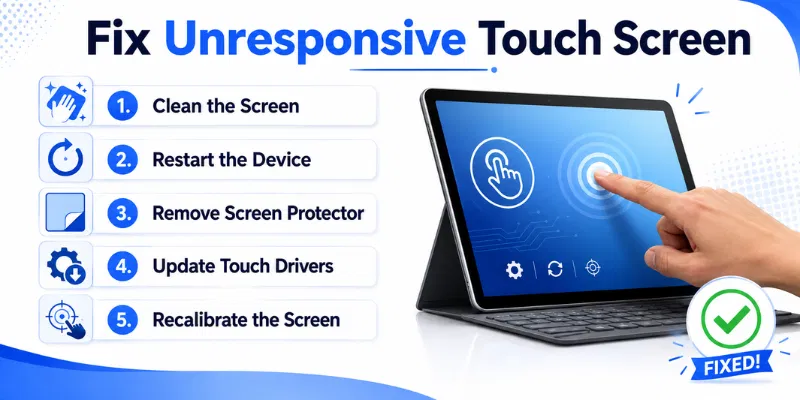
3. Why Is My Touch Screen Not Responding?
A touch screen may stop responding because of dirt, software errors, damaged accessories, or hardware problems. Sometimes, the issue affects the whole display, while only certain areas fail in other cases. Understanding the cause can help you choose the right solution.
1. Dirt, Oil, or Moisture
Dust, fingerprints, water, and oil can affect touch detection. Wet fingers may also cause missed taps or incorrect input.
2. Damaged Screen Protector
A cracked, thick, or poorly fitted screen protector may block touch response. Removing it temporarily can help identify the problem.
3. Temporary Software Error
A frozen app or system glitch can make the screen unresponsive. Restarting the device often clears temporary errors.
4. Outdated Software or Drivers
Old operating systems and touchscreen drivers may create compatibility problems. Installing updates can improve touch performance.
5. Device Overheating
Excessive heat can slow down the device and affect touchscreen response. Allow the device to cool before using it again.
6. Faulty Charger or Accessories
Damaged chargers, cables, USB devices, or external accessories may interfere with touch input. Disconnect them and test the screen again.
7. Physical or Water Damage
Drops, cracks, pressure, and water exposure can damage the digitizer or internal connections. These problems usually require professional repair.
4. Ways to Fix an Unresponsive Touch Screen
An unresponsive touchscreen may result from dirt, moisture, software errors, damaged accessories, overheating, or hardware failure. Start with simple solutions before resetting the device or paying for repairs. Apply one method at a time and check the touch response after every step.
1. Clean and Dry the Touch Screen
Dust, oil, fingerprints, and moisture can prevent the touchscreen from detecting your finger correctly. Turn off the device before cleaning it to avoid accidental input. Use a soft microfiber cloth and gently wipe the entire display. Make sure the screen is completely dry before testing it again.
- Turn off the device before cleaning
- Use a clean microfiber screen cloth
- Remove fingerprints, dust, oil, and moisture
- Avoid spraying liquid directly onto screen
- Test touch after completely drying display
2. Remove the Screen Protector and Case
A thick, cracked, or poorly installed screen protector can reduce touch sensitivity. Air bubbles, lifted edges, and trapped dust may also make certain screen areas unresponsive. The device case may press against the display and create similar problems. Remove both accessories temporarily and test the complete touchscreen.
- Remove the screen protector carefully first
- Check for bubbles and lifted edges
- Remove cases pressing against screen borders
- Test all corners without these accessories
- Replace damaged accessories with compatible options
3. Restart or Force Restart the Device
A frozen application or temporary software error can stop touchscreen input. Restarting closes background processes and reloads the operating system. Use the normal restart option when part of the screen still works. Perform a force restart when the touchscreen is completely frozen.
- Save important work before restarting device
- Use normal restart whenever screen responds
- Force restart completely frozen touchscreen devices
- Follow correct buttons for your model
- Test tapping and scrolling after restart
4. Disconnect Chargers and External Accessories
Faulty chargers, damaged cables, USB devices, and connected accessories can interfere with touch response. Unplug everything and test the touchscreen while the device is running on battery power. When the screen works normally afterward, reconnect each accessory separately. Replace the accessory that causes the problem to return.
- Disconnect charger from the device completely
- Remove USB devices and connected accessories
- Test screen while using battery power
- Reconnect each accessory separately for testing
- Replace damaged or low-quality charging equipment
5. Update Software and Touchscreen Drivers
Outdated software and touchscreen drivers may contain bugs or compatibility problems. Install available operating system updates because they often include performance improvements and touchscreen fixes. Windows users should also update or reinstall the HID-compliant touchscreen driver. Restart the device after completing all updates.
- Check for available operating system updates
- Install official updates from device manufacturer
- Update touchscreen drivers through Device Manager
- Reinstall corrupted drivers when updates fail
- Restart device after completing every update
6. Let the Device Cool Down
Excessive heat can slow the operating system and temporarily affect touchscreen performance. Stop using the device when it feels unusually hot. Disconnect the charger, close demanding applications, and remove the protective case. Leave the device in a cool, dry place until its temperature returns to normal.
- Stop using an unusually hot device
- Disconnect charger and external power accessories
- Close games and demanding background applications
- Remove case to release trapped heat
- Test touchscreen after device cools naturally
7. Check for Physical or Water Damage
Cracks, pressure, drops, and water exposure can damage the touchscreen digitizer or internal connections. The display may still show images even when touch input stops working. Software updates and calibration cannot repair broken hardware. Contact a qualified technician when the screen remains unresponsive after basic troubleshooting.
- Inspect screen for cracks and dents
- Check edges for lifting or separation
- Look for moisture beneath the display
- Avoid pressing damaged screen areas repeatedly
- Contact technician for professional hardware repair
5. Common Mistakes When Fixing an Unresponsive Touch Screen
Incorrect troubleshooting can make touchscreen problems worse or cause permanent damage. Users often apply too much pressure, use unsafe tools, or reset the device too early. Avoiding these mistakes can protect your screen, data, and warranty. Always begin with simple and safe solutions.
- Pressing damaged screen areas too forcefully
- Using sharp tools on touchscreen surface
- Resetting device without backing up data
- Installing unknown touchscreen repair applications
- Ignoring water or physical screen damage
- Using damaged or low-quality chargers
- Opening devices still covered under warranty
A touchscreen may stop responding because of dirt, moisture, software errors, overheating, or damaged hardware. A thick screen protector or faulty charger may also affect touch input. Start by cleaning and restarting the device.
Yes, restarting can clear temporary software errors and frozen applications. It reloads the operating system and background services. Use a force restart when the touchscreen is completely frozen.
Yes, a thick, cracked, or poorly installed protector can reduce touch sensitivity. Air bubbles and trapped dirt may also create unresponsive areas. Remove the protector temporarily and test the screen again.
Use a Touch Screen Tester to check the centre, corners, edges, and other areas. Tap or draw across the complete display to find missed inputs. Repeatedly unresponsive areas may indicate digitizer damage.
Yes, system updates may fix touchscreen bugs and compatibility issues. Windows users should also update or reinstall the touchscreen driver. Restart the device after completing the updates.
Yes, water can damage the digitizer and internal connections. Turn off the device and avoid charging or pressing the wet screen. Contact a qualified technician as soon as possible.
You should Test your Touch Screen after trying cleaning, restarting, updates, and accessory removal. Replacement may be necessary when large areas remain unresponsive or the display is badly cracked. Seek professional advice before replacing the screen.
Conclusion
So guys, in this article, we’ve covered Fix Unresponsive Touch Screen in detail. An unresponsive screen may result from dirt, moisture, software errors, damaged accessories, overheating, or hardware failure. Personally, I recommend starting with safe solutions such as cleaning the display, restarting the device, and removing the screen protector before trying advanced fixes. Follow the steps carefully and check the touchscreen after each method to find the right solution.

- Be Respectful
- Stay Relevant
- Stay Positive
- True Feedback
- Encourage Discussion
- Avoid Spamming
- No Fake News
- Don't Copy-Paste
- No Personal Attacks
- Be Respectful
- Stay Relevant
- Stay Positive
- True Feedback
- Encourage Discussion
- Avoid Spamming
- No Fake News
- Don't Copy-Paste
- No Personal Attacks
