What is a Screen Tester?
A Screen Tester is an online tool that helps you check your display for common screen problems. It shows different solid colors and test patterns so you can inspect the screen more easily. You can use it to find dead pixels, stuck pixels, backlight bleeding, uneven brightness, and color issues. It works well for laptops, desktop monitors, gaming screens, tablets, and other displays. A Screen Tester is especially useful when checking a new screen, buying a used device, or confirming a display problem before repair.
Why Should You Test Your Screen?
Testing your screen helps you find display problems before they become more annoying or costly. A Screen Tester makes it easier to check pixels, colors, brightness, and screen uniformity using simple full-screen tests.
- Find dead or stuck pixels.
- Check for backlight bleeding around the edges.
- Spot uneven brightness or dark areas.
- Check whether colors look correct and balanced.
- Test a new laptop, monitor, or display after purchase.
- Inspect a used screen before buying it.
- Confirm display problems before repair or replacement.
Tip: Clean the screen first so dust or fingerprints do not look like pixel problems.
How to Use Screen Tester
Using a Screen Tester is simple and takes only a few minutes. It shows different full-screen colors so you can check for dead pixels, stuck pixels, backlight bleeding, and uneven display areas.
- Clean Your Screen: Remove dust and fingerprints before starting the test.
- Open the Screen Tester: Launch the tool in your web browser.
- Enter Full-Screen Mode: Make the test cover the entire display.
- Start With a Black Screen: Check for bright spots, stuck pixels, or backlight bleeding.
- Test White, Red, Green, and Blue: Look for dark dots, wrong colors, or uneven areas.
- Check the Corners and Edges: Inspect these areas carefully for light leaks or brightness problems.
- Look at the Center: Make sure the middle of the screen looks even and clear.
- Repeat Suspicious Tests: If you notice a strange dot or patch, test the same area again with different colors.
- Exit Full-Screen Mode: Finish the test once you have checked the full display.
Tip: Test in both normal lighting and a darker room, especially when checking for backlight bleeding.
Features of Screen Tester
Our Screen Tester gives you a simple way to check different display problems directly in your browser. It is designed for quick testing without installing any extra software.
- Full-Screen Testing: Check the entire display without distractions.
- Black Screen Test: Find backlight bleeding, bright spots, and stuck pixels.
- White Screen Test: Spot dark pixels, marks, and uneven brightness.
- Red Screen Test: Check red pixel performance and color consistency.
- Green Screen Test: Find pixel and color issues more easily.
- Blue Screen Test: Check blue pixels and uneven display areas.
- Dead Pixel Detection: Helps you identify pixels that do not respond properly.
- Stuck Pixel Check: Makes single-color stuck pixels easier to notice.
- Brightness Check: Compare bright and dark areas across the screen.
- Color Uniformity Test: Check whether colors look even from edge to edge.
- No Installation Needed: Use the tool directly in a supported browser.
- Easy to Use: Simple controls make it suitable for beginners.
Works on All Devices
Our Screen Tester works on many common devices with a modern web browser. You can use it to inspect different displays for dead pixels, stuck pixels, color problems, and uneven brightness.
- Windows PC: Test desktop monitors and connected displays.
- Mac: Check MacBook, iMac, and external screens.
- Laptop: Inspect built-in laptop displays for common screen issues.
- Desktop Monitor: Test LCD, LED, OLED, and gaming monitors.
- Chromebook: Check the built-in Chromebook display directly in the browser.
- Android Devices: Test supported smartphone and tablet screens.
- iPhone & iPad: Check display colors, pixels, and brightness using a compatible browser.
- External Displays: Test supported monitors connected to your computer or laptop.
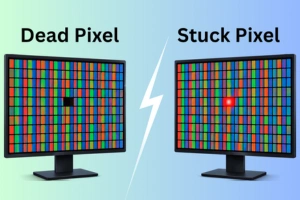
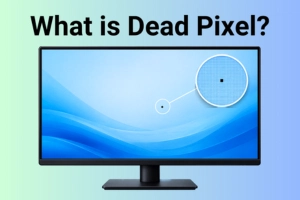
A dead pixel usually stays black and does not change with different test colors. A stuck pixel may stay red, green, blue, or another color. Use a Screen Tester with several solid colors to check the pixel carefully.
No, a Screen Tester mainly helps you find and inspect display problems. It does not repair physically damaged pixels. If the issue remains, you may need professional repair or replacement.
This may be caused by backlight bleeding, which is more common on some LCD screens. It is easier to notice on a black screen in a dark room. Small amounts may be normal, but strong bleeding can affect viewing quality.
Yes, you can use the same tool on laptops, desktop monitors, and many other displays. Open the test on the screen you want to check. Then use the available colors to inspect the full display.
Different colors make certain pixel and display problems easier to see. Black, white, red, green, and blue screens can reveal different types of issues. Testing several colors gives you a more complete screen check.
Conclusion
So guys, in this article, we’ve covered Screen Tester in detail. It helps you check dead pixels, stuck pixels, screen bleeding, color issues, and uneven brightness without installing extra software. I recommend testing your display whenever you buy a new device, notice a strange spot, or want to confirm a screen problem. Use our Screen Tester now and check your display in just a few minutes.







- Be Respectful
- Stay Relevant
- Stay Positive
- True Feedback
- Encourage Discussion
- Avoid Spamming
- No Fake News
- Don't Copy-Paste
- No Personal Attacks
- Be Respectful
- Stay Relevant
- Stay Positive
- True Feedback
- Encourage Discussion
- Avoid Spamming
- No Fake News
- Don't Copy-Paste
- No Personal Attacks
