How to Clean a Mouse in 2026?
Published: 12 Sep 2026
A computer mouse collects dust, oil, sweat, and small food particles during regular use. This dirt can affect the buttons, scroll wheel, sensor, and overall performance. Learning How to Clean a Mouse properly can improve tracking, maintain hygiene, and help the device last longer.
1. Why Should You Clean Your Mouse?
A computer mouse collects dust, sweat, oil, and food particles during regular use. This buildup can affect its appearance, comfort, and performance. Learning How to Clean a Mouse properly helps keep the device responsive, hygienic, and in good working condition.
1. Better Cursor Performance
Dust can collect near the optical or laser sensor under the mouse. This may cause the cursor to move unevenly, freeze, or jump across the screen. Cleaning the sensor area helps it track movement correctly. A Clean a Mouse pad also supports smoother cursor control. Regular cleaning can improve overall accuracy during daily tasks.
2. Smooth Buttons and Scroll Wheel
Small particles can enter the gaps around mouse buttons and the scroll wheel. This may make the buttons feel sticky or stop them from responding properly. Dirt can also make scrolling slow, rough, or inconsistent. Cleaning these areas helps the controls work smoothly. It also makes clicking and browsing more comfortable.
3. Better Hygiene
A mouse is touched many times throughout the day. Sweat, skin oil, dust, and germs can build up on its surface. This problem becomes more common when several people share the same computer. Regular cleaning keeps the mouse fresh and more hygienic. It also helps maintain a cleaner workspace.
4. Improved Comfort
A dirty or oily mouse can feel unpleasant during long computer sessions. Sticky surfaces may also make it harder to maintain a comfortable grip. Cleaning removes fingerprints, grease, and other visible marks. This makes the mouse easier and more comfortable to hold. A clean device can improve the overall user experience.
5. Longer Mouse Life
Dirt inside buttons, gaps, and moving parts can cause wear over time. It may also affect the scroll wheel, sensor, and internal components. Regular cleaning helps prevent heavy buildup before it creates serious problems. Proper maintenance can reduce the need for repairs or replacement. It may help your mouse continue working properly for a longer time.
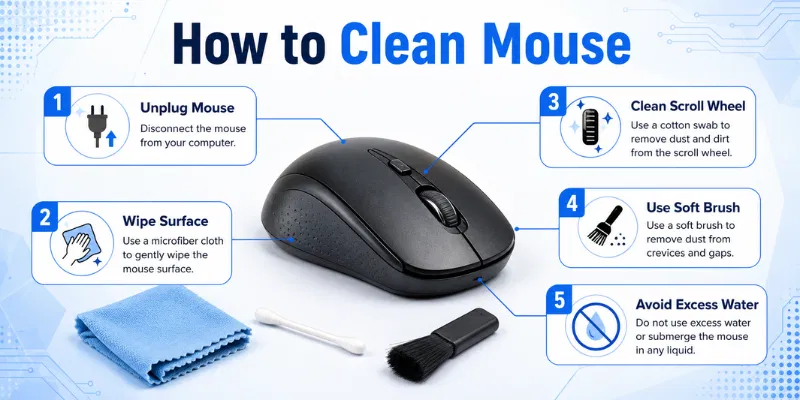
2. What You Need to Clean a Mouse
Cleaning a mouse does not require expensive tools. A few simple items can remove dust, oil, and dirt from the surface, buttons, scroll wheel, and sensor. Before learning How to Clean a Mouse, collect the right supplies to make the process safe and easy.
1. Microfiber Cloth
A soft microfiber cloth is useful for cleaning the outer body of the mouse. It removes fingerprints, dust, and oily marks without scratching the surface. You can use it dry or slightly damp for better cleaning. Avoid using rough fabric because it may damage the mouse coating. Keep a separate dry cloth for removing moisture afterward.
2. Cotton Swabs
Cotton swabs are helpful for cleaning narrow gaps around the buttons and scroll wheel. They can also reach small areas near the sensor and side grips. Use them dry for loose dust or add a small amount of isopropyl alcohol for sticky dirt. Do not soak the cotton swab because liquid may enter the device. Move it gently to avoid pushing dirt deeper inside.
3. Isopropyl Alcohol
Isopropyl alcohol can remove oil, germs, and sticky marks from the mouse surface. Apply a small amount to a cloth or cotton swab instead of pouring it directly onto the device. It dries faster than water and leaves less moisture behind. Avoid using too much near openings, buttons, or the sensor. Let the mouse dry completely before reconnecting it.
4. Compressed Air or Soft Brush
Compressed air can remove loose dust from the scroll wheel, button gaps, and sensor area. A small soft brush can also clean these places safely. Use short bursts of air and keep the can at a reasonable distance. Avoid using very strong pressure because it may push dirt deeper into the mouse. A clean makeup brush can work as a simple alternative.
5. Toothpick and Clean Water
A wooden toothpick can help remove stubborn dirt from narrow edges and gaps. Use it carefully and avoid pushing it into internal parts. Clean water may be used only to slightly dampen a microfiber cloth. Never pour or spray water directly onto the mouse. Strong cleaners, bleach, and sharp metal tools should also be avoided.
3. How to Clean a Mouse Step by Step
Cleaning a mouse is simple when you follow the correct steps. You should use soft tools, very little liquid, and avoid opening the device without proper knowledge. This guide on How to Clean a Mouse will help you clean the body, buttons, scroll wheel, and sensor safely.
1. Disconnect the Mouse
First, unplug a wired mouse from the computer before cleaning it. Turn off a wireless mouse and remove its batteries where possible. Disconnect the USB receiver and keep it in a safe place. This step protects the mouse and computer from electrical damage. Never clean a mouse while it is connected or switched on.
2. Clean the Outer Surface
Use a dry microfiber cloth to remove loose dust from the mouse body. Slightly dampen the cloth with water or isopropyl alcohol for oily marks. Wipe the top, sides, palm area, and bottom gently. Do not spray liquid directly onto the device. Use a dry cloth afterward to remove any remaining moisture.
3. Clean the Buttons and Scroll Wheel
Use a cotton swab or soft brush around the left and right buttons. Rotate the scroll wheel slowly while removing dust from its edges. A small amount of isopropyl alcohol can help clean sticky areas. Use a wooden toothpick carefully for dirt trapped in narrow gaps. Avoid pushing dust or liquid deeper inside the mouse.
4. Clean the Mouse Sensor
Turn the mouse over and locate the optical or laser sensor. Use a soft dry brush or short burst of compressed air to remove dust. You can gently wipe the sensor window with a dry cotton swab. Do not scratch or press the sensor area. Cleaning the mouse pad can also improve cursor tracking.
5. Let It Dry and Test It
Leave the mouse in a clean and dry place after cleaning. Wait until every surface and small gap is completely dry. Insert the batteries or reconnect the mouse to the computer. Test the buttons, scroll wheel, and cursor movement carefully. Repeat light cleaning if any dirt or performance problem remains.
4. Common Mistakes to Avoid While Cleaning a Mouse
Cleaning a mouse can improve its performance and hygiene, but the wrong method may damage it. Many users use too much liquid, harsh cleaners, or sharp tools without thinking about the risk. When learning How to Clean a Mouse, avoid these common mistakes to keep the device safe.
1. Cleaning While It Is Connected
Do not clean a mouse while it is plugged into the computer. A wireless mouse should also be turned off before cleaning. Keeping it connected may cause electrical problems or accidental clicks. Remove the batteries when possible. Reconnect the mouse only after it is fully dry.
2. Spraying Liquid Directly
Never spray water, alcohol, or cleaner directly onto the mouse. Liquid can enter the buttons, scroll wheel, or internal parts. This may cause short circuits or permanent damage. Apply a small amount to a cloth or cotton swab instead. The cleaning material should be slightly damp, not wet.
3. Using Strong Chemicals
Bleach and harsh household cleaners can damage the mouse surface. They may remove paint, soften rubber grips, or affect the outer coating. Strong chemicals can also leave an unpleasant smell. Use isopropyl alcohol or a mild cleaning solution when suitable. Always check the manufacturer’s instructions first.
4. Using Sharp Metal Tools
Sharp objects can scratch the mouse body or damage small parts. Metal pins and knives may also reach internal wiring. Use a wooden toothpick, soft brush, or cotton swab for narrow gaps. Move the tool gently around buttons and edges. Never force anything inside the device.
5. Using Too Much Compressed Air
Strong air pressure can push dirt deeper into the mouse. It may also affect the scroll wheel or internal components. Use short and gentle bursts from a safe distance. Keep the can upright while spraying. A soft brush is a safer option for light dust.
6. Scratching the Sensor
The optical or laser sensor is a sensitive part of the mouse. Scratching or pressing it may cause poor cursor tracking. Clean it with a dry cotton swab or soft brush. Avoid using rough cloths or sharp tools near the sensor. Handle this area with extra care.
7. Reconnecting Before It Dries
Do not reconnect the mouse immediately after cleaning. Moisture may remain inside small gaps even when the surface looks dry. Leave the device in a clean place for enough time. Make sure every part is completely dry. Then reconnect it and test all functions.
5. Signs Your Computer Mouse Needs Cleaning
A computer mouse may look clean from the outside, but dust and oil can collect around its buttons, wheel, and sensor. These small problems can affect cursor movement and clicking performance. Knowing the warning signs helps you understand How to Clean a Mouse before the device becomes difficult to use.
Common signs include:
- The cursor moves slowly, jumps, or freezes on the screen.
- The left or right button feels sticky while clicking.
- The scroll wheel moves roughly or stops responding properly.
- Dirt is visible around the buttons, edges, or side grips.
- The mouse surface feels oily, sticky, or uncomfortable to hold.
- The sensor area has dust, hair, or small particles.
- The trackball or mouse movement does not feel smooth.
- Extra side buttons respond slowly or need repeated pressing.
- The mouse gives uneven performance on a clean surface.
- An unpleasant smell comes from the mouse after long use.
Regular cleaning can fix many of these problems and improve daily performance. However, if the mouse still does not work properly after cleaning, the issue may be related to hardware damage or worn-out parts.
You should lightly clean your mouse once a week. A deeper cleaning can be done every one to three months. Clean it sooner if the buttons, wheel, or cursor stop working smoothly.
You can use a very small amount of water on a microfiber cloth. The cloth should be slightly damp, not wet. Never pour or spray water directly onto the mouse.
Yes, a small amount of isopropyl alcohol is usually safe for the outer surface. Apply it to a cloth or cotton swab instead of the mouse itself. Let the device dry completely before reconnecting it.
Turn off or unplug the mouse first. Use a lightly damp cotton swab around the button edges to remove dirt. Avoid pushing liquid inside the device.
Turn the mouse over and locate the optical or laser sensor. Use a dry cotton swab, soft brush, or short burst of compressed air. Do not scratch or press the sensor window.
Beginners should avoid opening the mouse unless the manufacturer allows it. Opening the device may damage small parts or affect the warranty. External cleaning is enough for most common problems.
The problem may be caused by a damaged sensor, cable, battery, or internal switch. Test the mouse on another surface or computer to check the issue. You may need to repair or replace it if the problem continues.
Conclusion
So guys, in this article, we’ve covered How to Clean a Mouse in detail. Regular cleaning helps improve cursor movement, button response, hygiene, and overall comfort. I personally recommend doing a light cleaning every week and a deeper cleaning whenever the mouse feels sticky or starts working poorly. Always disconnect the device and use only a small amount of safe cleaning liquid. Check your mouse today and clean it before dirt starts affecting its performance.

- Be Respectful
- Stay Relevant
- Stay Positive
- True Feedback
- Encourage Discussion
- Avoid Spamming
- No Fake News
- Don't Copy-Paste
- No Personal Attacks
- Be Respectful
- Stay Relevant
- Stay Positive
- True Feedback
- Encourage Discussion
- Avoid Spamming
- No Fake News
- Don't Copy-Paste
- No Personal Attacks
