What is a Touch Screen Tester?
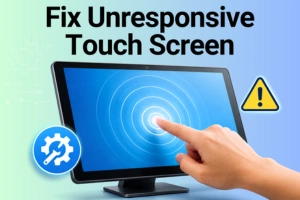
A Touch Screen Tester is an online tool that helps you check whether different parts of your touch display respond correctly. It can be used to test taps, swipes, touch accuracy, dead zones, ghost touches, and multi-touch response. The tool usually gives visual feedback whenever your finger touches or moves across the screen. This makes it easier to spot areas that do not respond or behave incorrectly. A Touch Screen Tester is useful for phones, tablets, touch-screen laptops, and other supported touch devices.
How to Use the Touch Screen Tester
Using this Touch Screen Tester is simple. The tool opens with a Start Test button, then switches to a full-screen grid made of small boxes. When your touch is detected, the box under your finger turns green, which helps you check whether different parts of the screen are responding properly.
- Click Start Test: Tap the Start Test button to begin. The tester then opens the main testing screen and automatically tries to enter full-screen mode.
- Touch the Grid: Tap different boxes across the screen. A box turns green when the tool detects your touch.
- Drag Your Finger Across the Screen: Move your finger slowly across different rows, columns, corners, and edges. The tool continues marking each touched box green while your finger moves.
- Look for Untouched Boxes: If some boxes do not turn green even after you touch or drag across them several times, that area may not be responding correctly.
- Test Multiple Fingers: The tool can read multiple active touch points during touch input, so you can also check how the screen responds when using more than one finger.
- Cover the Full Screen: Continue until you have tested the center, edges, and all four corners.
- Press ESC to Reset: On supported desktop use, pressing Esc exits full-screen mode, clears all green boxes, and returns you to the Start Test screen.
Key Features of Touch Screen Tester
This Touch Screen Tester is designed to check how well different areas of a touch display respond. It uses a full-screen grid and gives clear visual feedback whenever a touch is detected.
- Full-Screen Testing: After you press Start Test, the tool automatically tries to open in full-screen mode for easier testing.
- Grid-Based Touch Check: The screen is divided into a large grid of 26 columns and 13 rows, allowing you to test many small areas of the display.
- Green Touch Feedback: Any grid box that detects your touch turns green, making responsive areas easy to identify.
- Tap and Drag Testing: You can touch individual areas or drag your finger across the display to test several sections continuously.
- Multi-Touch Detection: The tool checks all active touch points in the touch event, so more than one finger can be detected at the same time.
- Edge and Corner Testing: Because the grid covers the full viewport, you can check the center, edges, and corners of the screen.
- Easy Reset: Pressing Esc clears all green marks and returns the tool to the Start Test screen.
- No Complicated Controls: The starting screen contains a simple Start Test button, making the tool easy for beginners to use.
Compatible Devices
This Touch Screen Tester is designed for devices that can open the tool in a modern browser and support touch input. The tester fills the browser viewport with a touch grid.
- Android Phones: You can tap and drag across the grid using your fingers.
- Android Tablets: The larger display makes it easy to check different screen areas.
- iPhone: The tool can be used in a supported mobile browser with touch input.
- iPad: You can test a larger touch surface by dragging across the grid.
- Touch-Screen Laptops: Supported touch-enabled laptops can use the same grid test.
- 2-in-1 Devices: Convertible laptops and tablets with touch input can also use the tester.
Tips for Using the Touch Screen Tester
- Clean the Screen First: Remove dust, oil, or moisture so they do not affect your touch response.
- Use Normal Finger Pressure: Touch the screen naturally instead of pressing too hard.
- Test the Full Grid: Move across the center, edges, and all four corners so no area is missed. The tester is built as a full-screen grid for this purpose.
- Drag Slowly: Move your finger slowly across the boxes so each touched cell has time to turn green.
- Repeat Suspicious Areas: If a box does not turn green, test the same spot again before assuming there is a touch problem.
- Try More Than One Finger: The tester can process multiple active touch points, so you can also check multi-touch response.
- Use the Reset When Needed: On supported desktop use, pressing Esc clears all green cells and returns to the start screen for a fresh test.
Run the tester and move your finger across the full grid. Areas that respond should turn green when touched. If the same boxes repeatedly stay unchanged, that part of the screen may have a touch-response issue.
Yes, the testing grid covers the full browser viewport. You should drag your finger along all four edges and corners during the test. This helps you find small areas that may be less responsive.
Yes, the tool processes all active touch points during a touch event. This means you can place more than one finger on the screen while testing. It can help you check whether multiple touches are detected at the same time.
On supported desktop use, press the Esc key. The tool clears all green marks, exits full-screen mode if active, and returns to the start screen. You can then begin a fresh test.
Conclusion
So guys, in this article, we’ve covered Touch Screen Tester in detail. This tool helps you check touch response across the screen by showing which grid areas react when you tap or drag your finger. I recommend testing the full display, including the edges and corners, and repeating any area that does not respond properly. Start the Touch Screen Tester now and check whether every part of your screen is working correctly.






- Be Respectful
- Stay Relevant
- Stay Positive
- True Feedback
- Encourage Discussion
- Avoid Spamming
- No Fake News
- Don't Copy-Paste
- No Personal Attacks
- Be Respectful
- Stay Relevant
- Stay Positive
- True Feedback
- Encourage Discussion
- Avoid Spamming
- No Fake News
- Don't Copy-Paste
- No Personal Attacks
