Advantages and Disadvantages of Touch Screen in 2026
Published: 24 Sep 2026
Touch screens are widely used in smartphones, tablets, laptops, ATMs, cars, and many other digital devices. They allow users to control functions directly through taps, swipes, and gestures. However, they may also collect fingerprints, use more power, and cost more to repair. This guide explains the Advantages and Disadvantages of Touch Screen technology in simple words.
1. What Is a Touch Screen?
A touch screen is a display that allows users to control a device by touching the surface with a finger or compatible stylus. It works as both an output device, because it shows text, images, and videos, and an input device, because it receives touch commands. Users can tap icons, scroll pages, zoom, type, draw, and select options directly on the screen. Touch screens are commonly used in smartphones, tablets, laptops, ATMs, cars, kiosks, and industrial machines. Depending on the technology, they may detect electrical charge, pressure, light, or sound waves. Although touch screens provide quick and simple control, they may also collect fingerprints, require more care, and cost more to repair.
2. How Does a Touch Screen Work?
A touch screen works by detecting contact from a finger, stylus, or another supported object. When the user touches the surface, the sensor layer identifies a change in pressure, electrical charge, infrared light, or another signal. The touch controller then calculates the exact location of the input. After that, the device software converts the signal into a command. The screen may open an app, select an option, scroll a page, zoom an image, or perform another action. Different touch screen technologies use different detection methods, but all of them turn physical touch into a digital response.
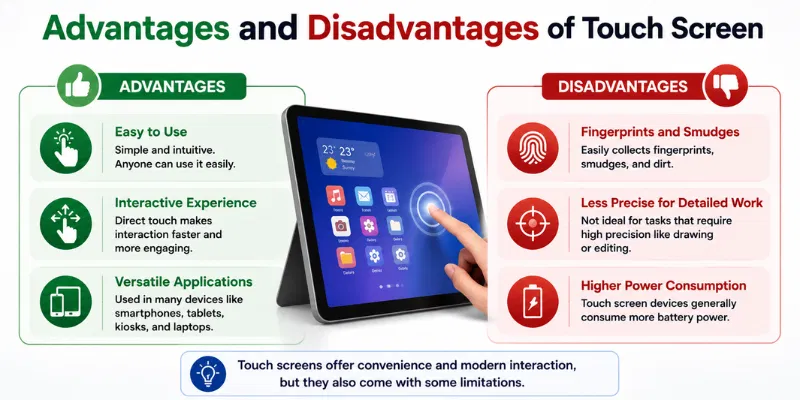
3. Advantages of Touch Screen
Touch screens are popular because they offer direct control, fast navigation, and a modern user experience. They are used in phones, tablets, laptops, ATMs, cars, and many other devices.
1. Easy and Direct Control
A touch screen allows users to tap icons, select options, and open apps directly on the display. There is no need to move a separate mouse pointer for basic actions. This makes the device easier to use for beginners and casual users.
2. Faster Navigation
Users can scroll, swipe, zoom, and switch between apps with simple finger movements. These actions often feel quicker than using physical buttons or a touchpad. Direct navigation is especially useful on smartphones, tablets, and kiosks.
3. Supports Multi-Touch Gestures
Modern touch screens can detect more than one finger at the same time. This allows users to pinch to zoom, rotate images, and scroll with multiple fingers. Multi-touch gestures make browsing, gaming, and editing more flexible.
4. Useful for Drawing and Writing
A compatible touch screen can support a digital pen or stylus. Students can write notes, artists can create drawings, and professionals can sign or mark documents. This makes touch-enabled devices useful for creative and educational work.
5. Saves Physical Space
A touch screen can replace many physical buttons, switches, and controls. This helps manufacturers create cleaner and more compact devices. It is especially useful in ATMs, kiosks, car dashboards, and industrial control panels.
6. Better for Presentations
Users can control slides, highlight information, and point to details directly on the display. This can make classroom and business presentations more interactive. Touch control also reduces the need for a separate mouse or remote.
7. Flexible Device Design
Touch technology allows laptops to work in tablet, tent, or stand mode. It is also used in foldable devices and detachable computers. This flexibility makes one device suitable for work, entertainment, reading, and drawing.
8. Improved Accessibility
Large touch buttons can be easier to use than small keyboard keys or mouse controls. Children, beginners, and some users with movement difficulties may find direct touch more natural. A well-designed touch interface can make digital devices easier to understand and operate.
4. Disadvantages of Touch Screen
Touch screens offer direct and easy control, but they also have some limitations. These problems can affect cost, comfort, battery life, accuracy, and long-term durability.
1. Fingerprints and Smudges
Frequent touching leaves fingerprints, oil marks, and smudges on the display. These marks can reduce screen clarity and make the device look dirty. Regular cleaning is needed to keep the surface clear.
2. Higher Cost
Touch-enabled devices are usually more expensive than similar non-touch models. The extra sensor layer, controller, and protective glass increase the price. Budget users may end up paying for a feature they do not use often.
3. More Battery Consumption
A touch-sensitive layer requires power to detect finger or stylus input. Many touch screens also use glossy displays that may need higher brightness in bright rooms. This can reduce battery life in laptops, tablets, and portable devices.
4. Expensive Repairs
In many devices, the display and touch layer are connected as one unit. If the touch sensor becomes damaged, the complete screen may need replacement. This can make repair more difficult and costly.
5. Less Accurate for Small Tasks
A finger is less precise than a mouse pointer or fine stylus. Selecting small icons, editing spreadsheets, or working with detailed software can feel difficult. Users may still need a mouse, keyboard, or compatible pen for accurate control.
6. Screen Glare and Reflections
Many touch screens use glossy glass to support smooth finger movement. Bright lights and sunlight can create reflections on the surface. This may reduce visibility and cause discomfort during outdoor or long-term use.
7. Accidental and Ghost Touches
Unwanted taps can open apps, move items, or change settings by mistake. A damaged sensor may also create ghost touches without any physical input. These problems can make the device frustrating and difficult to control.
8. Physical Tiredness and Fragility
Repeatedly lifting the arm to touch a laptop or large display can become tiring. Touch screens are also more exposed to pressure, scratches, and cracks because users interact directly with the surface. Damage may affect both the image and touch response at the same time.
5. Are Touchscreens Better Than Traditional Devices?
Touchscreens are not always better than traditional devices because both options are designed for different needs. A touchscreen offers direct control, simple navigation, and useful gestures, while traditional devices depend on physical buttons, a keyboard, mouse, or touchpad. The better choice depends on the task, user comfort, environment, and budget.
Touchscreens Are Better for Simple Navigation
Touchscreens make it easy to tap icons, scroll pages, zoom images, and select options directly. They are useful for smartphones, tablets, ATMs, kiosks, and educational devices. Beginners may also find touch controls easier to understand than a mouse and keyboard.
Traditional Devices Are Better for Detailed Work
A mouse and keyboard usually provide better accuracy for typing, gaming, spreadsheets, programming, and professional editing. Physical controls also give clear feedback when a button is pressed. This makes traditional devices more practical for long and detailed tasks.
Touchscreens Offer More Flexibility
Touch-enabled laptops and tablets can support drawing, handwriting, signatures, and direct document editing. Some devices also work in laptop, tablet, stand, or tent mode. Traditional devices usually offer fewer interaction methods but provide a stable working setup.
Traditional Devices Can Be More Comfortable
Repeatedly touching a large screen can make the hand, arm, or shoulder feel tired. A keyboard and mouse allow users to keep their arms in a more relaxed position. They are often more comfortable for several hours of continuous work.
Touchscreens May Cost More
Touch devices commonly cost more because they include an extra sensor layer, controller, and protective glass. Their screens can also be more expensive to repair after cracks or sensor damage. Traditional devices often provide better hardware specifications within the same budget.
Which One Should You Choose?
Choose a touchscreen for drawing, note-taking, presentations, public systems, and quick navigation. Choose a traditional device for typing, gaming, coding, office work, and tasks that require precise control. Overall, touchscreens are better for direct and interactive use, while traditional devices remain better for accuracy, comfort, affordability, and long working sessions.
6. Who Should Use Touchscreen Devices?
Touchscreen devices are suitable for users who prefer direct interaction, simple navigation, and flexible controls. They are especially useful for tasks involving drawing, writing, presenting, learning, or selecting options quickly.
1. Students
Students can use touchscreen devices for handwritten notes, diagrams, online classes, and educational apps. A compatible stylus also makes it easier to mark PDFs and solve problems directly on the screen. These features are useful for both general study and creative subjects.
2. Artists and Designers
Artists and designers benefit from drawing, sketching, and editing directly on the display. Pressure-sensitive stylus support can provide better control for detailed creative work. A touchscreen can make digital drawing feel more natural.
3. Teachers and Presenters
Teachers and presenters can tap, highlight, write, and move through slides directly. This makes lessons and meetings more interactive. It also reduces the need for a separate mouse or presentation remote.
4. Children and Beginners
Touch controls are simple because users can select items directly with a finger. Large icons and clear buttons can make devices easier to understand. This is helpful for children, first-time users, and people unfamiliar with a mouse or keyboard.
5. Business Professionals
Business users can sign documents, review files, take quick notes, and present ideas on a touchscreen device. Convertible laptops are also useful during meetings and client discussions. Direct screen control can make some tasks faster and more convenient.
Yes, a touch screen may use more power because its sensor layer remains active. Glossy displays may also require higher brightness in bright rooms. The actual battery difference depends on the device and its settings.
Yes, it can help students write notes, draw diagrams, mark PDFs, and use educational apps. A compatible stylus makes these tasks more accurate. Students who mainly type assignments may not need the extra feature.
It depends on the touch technology and the type of gloves. Resistive and infrared screens usually work with gloves, while many capacitive screens need special touchscreen gloves. Check the device specifications before buying.
A touch screen may stop responding because of dirt, moisture, outdated drivers, software problems, or damaged hardware. A thick or poor-quality screen protector can also reduce sensitivity. Restarting and cleaning the device may solve simple issues.
Ghost touches happen when the device performs actions without physical contact. Common causes include moisture, a cracked display, faulty chargers, software errors, or sensor damage. The device may need professional repair if the problem continues.
Open a Touch Screen Tester and tap or draw across the center, corners, and edges. Look for dead areas, delayed input, or broken lines. Repeat the test after removing any thick screen protector.
A cracked screen may continue showing images and accepting some touch input. However, the damage can spread and create dead areas or ghost touches. Repairing it early can help prevent further problems.
Conclusion
So guys, in this article, we’ve covered Advantages and Disadvantages of Touch Screen in detail. Touchscreens provide direct control, faster navigation, gesture support, and useful drawing features, but they can also collect fingerprints, use more battery, and cost more to repair. I personally recommend choosing a touchscreen device only when you genuinely need stylus support, flexible controls, or interactive use. Compare your daily needs, budget, battery requirements, and repair costs before making your final choice.

- Be Respectful
- Stay Relevant
- Stay Positive
- True Feedback
- Encourage Discussion
- Avoid Spamming
- No Fake News
- Don't Copy-Paste
- No Personal Attacks
- Be Respectful
- Stay Relevant
- Stay Positive
- True Feedback
- Encourage Discussion
- Avoid Spamming
- No Fake News
- Don't Copy-Paste
- No Personal Attacks
