Detailed Comparison between Screen vs Monitor
Published: 17 Sep 2026
A screen is the visible surface that shows images, text, and videos, while a monitor is the complete display device that includes the screen, frame, ports, stand, and internal parts. Although people often use both terms in the same way, they have different meanings. This Screen vs Monitor comparison explains their functions, components, uses, and main differences in simple words.
1. What is a Screen?
A screen is the visible surface of an electronic device where text, images, videos, and other visual information appear. It may be built into a laptop, smartphone, tablet, television, digital watch, or many other devices. The screen contains pixels that work together to create colors and detailed images. Depending on the device, it may use LCD, LED, OLED, or another display technology. Some screens also support touch controls, allowing users to interact directly with the displayed content. A screen usually depends on internal circuits, power, and a video source to function properly. In a Screen vs Monitor comparison, the screen refers mainly to the display area rather than the complete device.
2. What is a Monitor?
A monitor is a complete electronic display device used to show visual output from a computer, laptop, gaming console, or other source. It includes the screen panel, outer frame, connection ports, control buttons, internal circuits, power system, and usually a stand. Most monitors connect through HDMI, DisplayPort, USB-C, VGA, or another video connection. They are commonly used for office work, gaming, studying, designing, and watching videos. Monitors are available in different sizes, resolutions, panel types, and refresh rates. Some models also include speakers, USB hubs, touch controls, or adjustable stands. In a Screen vs Monitor comparison, a monitor refers to the complete device, while the screen is only the visible display area.
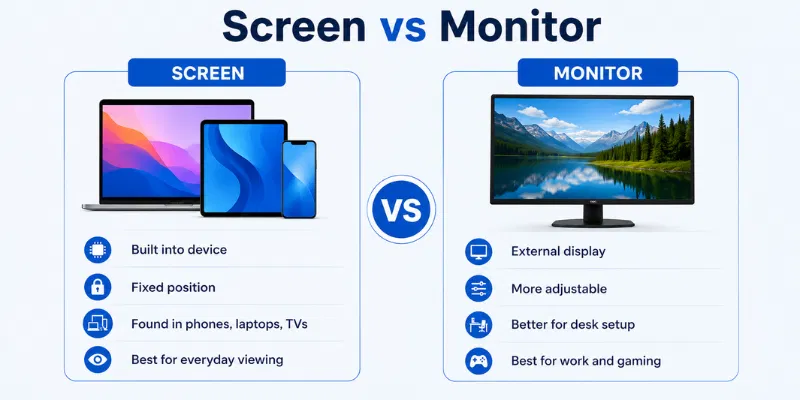
3. Screen vs Monitor Comparison
A screen and a monitor are closely related, but they are not exactly the same. A screen is the visible display area where images, text, and videos appear, while a monitor is the complete device that includes the screen and other parts. The table below explains the main differences in simple words.
| Feature | Screen | Monitor |
| Meaning | The visible display surface | A complete display device |
| Main Function | Shows visual content | Receives and displays visual signals |
| Parts Included | Mainly the display panel | Screen, frame, ports, stand, controls, and internal circuits |
| Common Use | Found in laptops, phones, tablets, TVs, and monitors | Mainly used with computers, laptops, and gaming consoles |
| Connection Ports | May not have separate ports | Usually includes HDMI, DisplayPort, USB-C, or VGA |
| Power Source | Gets power from the device it is part of | Usually has its own power connection |
| Portability | Depends on the device | Usually less portable, except portable monitors |
| Repair | The display panel may be replaced separately | Ports, power supply, stand, or the full device may need repair |
| Price | Depends on panel size and technology | Depends on size, resolution, refresh rate, ports, and features |
| Best Example | Laptop screen or phone screen | Desktop monitor or gaming monitor |
In a Screen vs Monitor comparison, the main point is simple: the screen is the part you look at, while the monitor is the full device that holds and controls it.
4. Detailed Difference Between Screen vs Monitor
A screen and a monitor both display visual content, but they are different in meaning, structure, and use. The following points explain the difference between them in detail.
1. Components
A screen mainly includes the display panel, pixels, backlight, color filters, and protective layers. A monitor includes all these parts along with a frame, stand, control buttons, ports, power supply, and internal circuit boards. This makes the monitor a complete display system.
2. Device Type
A screen can be part of many electronic devices, including laptops, smartphones, tablets, televisions, watches, and calculators. A monitor is usually a separate display device used with a computer, laptop, gaming console, or media player. Portable monitors are also available, but they are still complete devices.
3. Connection Options
A built-in screen normally connects directly to the internal hardware of its device. It may not have separate ports for external connections. A monitor usually includes HDMI, DisplayPort, USB-C, VGA, or other ports for receiving video and audio signals.
4. Power Source
A screen usually receives power from the device in which it is installed. For example, a laptop screen uses power from the laptop battery or charger. A monitor commonly has its own power cable or adapter.
5. Portability
The portability of a screen depends on the device that contains it. Phone, tablet, and laptop screens are easy to carry because they are built into portable devices. Standard monitors are larger and usually remain on a desk, although lightweight portable models are also available.
6. Controls and Settings
A screen alone does not usually include separate controls for brightness, contrast, input source, or color modes. These settings are managed through the main device. A monitor often includes physical buttons or an on-screen menu for changing display settings.
7. Repair and Replacement
A damaged screen panel may sometimes be replaced without changing the full device. For example, a technician may replace only the cracked screen of a laptop or phone. A monitor may develop problems with its panel, ports, stand, power supply, buttons, or internal circuits, so repair depends on the damaged part.
8. Price
The cost of a screen depends on its size, resolution, panel type, and device compatibility. A monitor usually costs more because it includes the screen and additional hardware. Its price may also increase with features such as a high refresh rate, adjustable stand, speakers, and extra ports.
9. Usage
Screens are used in a wide range of devices for communication, entertainment, navigation, and information display. Monitors are mainly used for office work, gaming, studying, designing, editing, and multitasking. Their larger size and additional features make them suitable for longer working sessions.
10. Common Examples
Examples of screens include a smartphone screen, laptop screen, tablet screen, television screen, and digital watch display. Examples of monitors include an office monitor, gaming monitor, ultrawide monitor, professional editing monitor, and portable monitor. These examples make the Screen and Monitor difference easier to understand.
The key difference in Screen vs Monitor is that a screen is only the visible display part, while a monitor is the complete device containing the screen, ports, controls, power system, and supporting hardware.
5. Advantages and Disadvantages of Screen and Monitor
A screen and a monitor both help users view digital content, but each one has different strengths and limitations. The points below explain their main advantages and disadvantages in simple words.
Advantages of a Screen
- A screen can be built into portable devices such as laptops, phones, and tablets.
- It displays text, images, videos, and other visual information clearly.
- It is available in different technologies, including LCD, LED, OLED, and touchscreen.
- Built-in screens do not require extra desk space.
- Touchscreens allow users to control the device directly with their fingers.
- A damaged screen can sometimes be replaced without replacing the full device.
- Small screens make electronic devices easier to carry and use while travelling.
Disadvantages of a Screen
- A screen usually cannot work alone without power, circuits, and a video source.
- It can crack or develop pressure marks after an impact.
- Replacement may be expensive, especially for premium devices.
- Small screens may not provide enough space for multitasking.
- Some panels have limited viewing angles or weak color quality.
- Touchscreens can collect fingerprints and require regular cleaning.
- Dead pixels, flickering, and backlight problems may affect display quality.
Advantages of a Monitor
- A monitor provides a larger viewing area for work, study, gaming, and entertainment.
- It usually includes useful ports such as HDMI, DisplayPort, and USB-C.
- Users can connect it to computers, laptops, gaming consoles, and media players.
- Many models offer adjustable height, tilt, and viewing angles.
- High-resolution monitors make text, images, and videos look more detailed.
- Gaming monitors may provide a high refresh rate and fast response time.
- Extra features may include speakers, USB hubs, touch controls, and multiple inputs.
Disadvantages of a Monitor
- A monitor requires additional desk space.
- It usually needs a separate power cable or adapter.
- Standard models are less portable than laptop or tablet screens.
- High-quality monitors can be expensive.
- Multiple cables may create clutter around the desk.
- Large monitors can be difficult to move or store.
- Problems with ports, power boards, stands, or internal circuits may increase repair costs.
In the Screen vs Monitor comparison, a screen is more suitable for built-in and portable use, while a monitor offers a larger display and more features. The better option depends on the user’s available space, budget, device type, and daily purpose.
6. Who Should Use a Screen?
A screen is suitable for users who prefer portability, built-in display access, and simple everyday use. It works best when there is no need for a separate external display device.
1. Laptop Users
Laptop users should use the built-in screen for study, office work, browsing, and entertainment. It keeps the setup compact and removes the need for extra cables. A laptop screen is especially useful for people who work in different locations.
2. Students
Students can use a screen for online classes, assignments, research, and presentations. A built-in laptop or tablet screen is easy to carry to classrooms and libraries. It is also practical for users who have limited desk space.
3. Frequent Travellers
Travellers often need a lightweight and simple setup. A built-in screen allows them to work in airports, hotels, cafés, and public transport without carrying a monitor. This makes portable devices more convenient during trips.
4. Smartphone and Tablet Users
People who mainly browse, watch videos, read, or use apps can rely on the built-in screen of a phone or tablet. Touchscreens also allow direct control through taps and gestures. These users usually do not need a separate monitor for basic tasks.
5. Casual Users
Casual users who check emails, browse websites, watch videos, or use social media can work comfortably on a screen. A separate monitor may not be necessary for light daily tasks. The built-in display is usually enough for simple use.
6. Users With Limited Space
A screen is suitable for people working on small desks, shared tables, or compact rooms. It does not require extra space for a stand, power cable, or connection wires. This helps keep the setup clean and simple.
7. Touch-Control Users
Users who prefer tapping, swiping, drawing, or writing directly on the display should choose a touchscreen device. It is useful for digital notes, drawing, navigation, and interactive learning. In the Screen vs Monitor comparison, a screen is better for users who value touch control and portability.
7. Who Should Use a Monitor?
A monitor is suitable for users who need a larger display, better comfort, more screen space, and stronger performance for long working sessions. It is especially useful when the built-in screen of a laptop feels too small or limited.
1. Office Workers
Office workers should use a monitor for documents, emails, spreadsheets, and presentations. A larger display makes it easier to view more content and switch between multiple windows. It can also improve comfort during long working hours.
2. Gamers
Gamers can benefit from a monitor with a high refresh rate, fast response time, and low input delay. These features provide smoother movement and better control during games. Gaming monitors also offer useful options such as adaptive sync and different display modes.
3. Graphic Designers
Graphic designers need accurate colors, clear details, and enough space for tools and panels. A good monitor can provide higher resolution and better color quality than many built-in screens. It also makes detailed editing easier and more comfortable.
4. Video and Photo Editors
Editors often work with timelines, menus, previews, and small controls. A larger monitor provides more space for all these elements. High resolution and good color accuracy can also improve the editing process.
5. Programmers
Programmers can use a monitor to view more lines of code and keep multiple windows open. This reduces frequent switching between applications. An ultrawide or dual-monitor setup can make coding and testing more efficient.
6. Students and Online Learners
Students can use a monitor for research, online classes, assignments, and presentations. A larger display makes it easier to watch lectures while taking notes. It can also reduce the need to open and close windows repeatedly.
7. Laptop Users
Laptop users who work for several hours daily should consider connecting an external monitor. It provides a larger viewing area and allows the laptop to remain part of a comfortable desk setup. In the Screen vs Monitor comparison, a monitor is better for users who need productivity, performance, and more display space.
8. How to Choose Between a Screen and Monitor
Choosing between a built-in screen and an external monitor depends on your daily tasks, available space, budget, and comfort needs. The following points can help you make the right decision.
1. Consider Your Main Purpose
Think about how you use your device every day. A built-in screen is usually enough for browsing, online classes, emails, and light entertainment. A monitor is better for gaming, designing, editing, spreadsheets, coding, and multitasking.
2. Check Available Space
A screen is more suitable for small desks, shared tables, and travel use. It does not require a separate stand, power cable, or additional space. A monitor needs enough room for comfortable placement and movement.
3. Think About Portability
Choose a built-in screen when you frequently carry your laptop, tablet, or smartphone. It provides a simple setup that can be used almost anywhere. A standard monitor is better for a fixed home, office, or gaming setup.
4. Compare Screen Size
Small screens are convenient, but they may feel limited during long work sessions. A larger monitor can display more content and make multitasking easier. Common monitor sizes include 22, 24, 27, and 32 inches.
5. Check Resolution and Image Quality
Resolution affects how sharp text, images, and videos appear. Full HD is suitable for common tasks, while 1440p or 4K provides more detail. Also check panel type, brightness, contrast, colors, and viewing angles.
6. Review Refresh Rate and Response Time
A standard 60 Hz display is usually enough for office work, study, and browsing. Gamers may prefer a monitor with 120 Hz, 144 Hz, or a higher refresh rate. A faster response time also helps reduce motion blur and ghosting.
7. Check Connection Ports
Before buying a monitor, check the ports available on your laptop or computer. Common options include HDMI, DisplayPort, USB-C, and VGA. Make sure both devices support the same connection or purchase a suitable adapter.
9. Common Mistakes When Choosing or Using a Screen and Monitor
Many users make simple mistakes that affect display quality, comfort, and overall performance. Avoiding the following problems can help you get better results from your setup.
1. Choosing Only by Screen Size
A larger display does not always mean better quality. Resolution, panel type, refresh rate, and viewing distance also matter. Choose a size that fits your desk and supports your daily work.
2. Ignoring Native Resolution
Using the wrong resolution can make text and images look blurry or stretched. Every display works best at its recommended native resolution. Check your settings and select the correct option for sharper visuals.
3. Forgetting to Check Ports
Some users buy a monitor without checking their laptop or computer ports. This can cause connection problems or require an extra adapter. Compare HDMI, DisplayPort, USB-C, or VGA support before buying.
4. Ignoring Refresh Rate and Response Time
Refresh rate and response time are important for gaming and fast-moving content. A standard display may feel less smooth during competitive games. Check these features if motion performance matters to you.
5. Buying Features You Do Not Need
Premium monitors may include curved panels, high refresh rates, RGB lighting, USB hubs, or advanced color controls. These features can increase the price without improving basic browsing or office work. Pay only for features that match your actual needs.
6. Placing the Display Incorrectly
A screen placed too low, too high, or too close may cause neck and eye discomfort. Keep the top of the display near eye level and maintain a comfortable distance. Use a monitor stand or laptop stand when needed.
7. Using Very High Brightness
Keeping brightness at the maximum level can increase power use and make long viewing uncomfortable. Adjust it according to the room lighting. A balanced level usually provides better comfort and visibility.
8. Cleaning the Display Incorrectly
Strong chemicals, rough cloths, or direct liquid spray can damage the screen coating. Use a soft microfiber cloth and apply cleaner to the cloth instead of the panel. Wipe gently without pressing hard.
No, a screen is only the visible display area where images and text appear. A monitor is the complete device that includes the screen, ports, controls, power system, and other parts. This is the main difference in the Screen vs Monitor comparison.
Yes, many televisions can connect to a computer through HDMI or another supported port. However, a TV may have higher input delay and lower text clarity than a computer monitor. It is better for movies and casual use than long office or gaming sessions.
A laptop display is commonly called a screen because it is built into the device. It performs the same basic display function as a monitor but does not work as a separate unit. You can still connect an external monitor to a laptop for more viewing space.
A screen can be part of another device, such as a phone, laptop, tablet, or television. However, the display panel still needs power, internal circuits, and a video source to show content. A loose screen panel cannot normally work by itself.
Check the size, resolution, panel type, refresh rate, response time, and available ports. You should also consider desk space, viewing distance, budget, and your main purpose. Understanding Screen vs Monitor features helps you choose a suitable model.
Use a Screen Tester to check colors, brightness, dead pixels, backlight bleeding, and image quality. View solid red, green, blue, black, and white backgrounds carefully. Also test the display from different viewing angles.
A monitor may show no signal because of a loose cable, wrong input source, damaged port, or computer problem. Check the power, reconnect the video cable, and try another port or device. Test Your Screen after reconnecting everything to confirm that the display works properly.
Conclusion
So guys, in this article, we’ve covered Screen vs Monitor in detail. A screen is the visible display area, while a monitor is the complete device that includes the screen, ports, controls, power system, and other parts. I personally recommend using a built-in screen for travel and simple tasks, while an external monitor is better for gaming, office work, designing, and multitasking. Compare your space, budget, display needs, and daily tasks before choosing the right option.

- Be Respectful
- Stay Relevant
- Stay Positive
- True Feedback
- Encourage Discussion
- Avoid Spamming
- No Fake News
- Don't Copy-Paste
- No Personal Attacks
- Be Respectful
- Stay Relevant
- Stay Positive
- True Feedback
- Encourage Discussion
- Avoid Spamming
- No Fake News
- Don't Copy-Paste
- No Personal Attacks
