How to Calibrate Touch Screen: A Beginner Guide in 2026
Published: 29 Sep 2026
Touchscreen calibration helps match the position of your finger or stylus with the correct point on the display. When the calibration becomes inaccurate, the screen may open the wrong app, miss taps, or respond away from the selected area. Learning How to Calibrate Touch Screen can improve touch accuracy and make your device easier to control. This guide explains the complete process in simple steps for Windows laptops, monitors, and other touchscreen devices.
1. What Is Touch Screen Calibration?
Touch screen calibration is the process of matching the position you touch with the correct location on the display. It helps the device understand exactly where your finger or stylus is pressing. When calibration is incorrect, the screen may open the wrong option, miss taps, or respond away from the selected point. Calibration is especially common on resistive touchscreens and devices that use a stylus. Most modern capacitive screens are calibrated at the factory, but software settings or drivers may still affect their accuracy. It is important to remember that calibration can improve touch alignment, but it cannot repair a cracked screen or damaged touch sensor.
2. Why Does a Touch Screen Need Calibration?
A touch screen needs calibration when the device cannot correctly match your finger or stylus position with the display. Proper calibration improves touch accuracy and makes navigation easier.
- Incorrect touch position: The screen may respond beside or above the area you tap.
- Wrong apps or options open: A nearby icon may open instead of the one you selected.
- Poor response near edges: Buttons in the corners or along the screen borders may become difficult to use.
- Stylus misalignment: The pointer or drawing line may appear away from the stylus tip.
- Software or driver changes: System updates, new drivers, or incorrect settings can affect touch accuracy.
- Display replacement: A newly replaced screen or digitizer may require calibration to work correctly.
- Multiple-monitor setup: Touch input may control the wrong display when several screens are connected.
- Accuracy changes over time: Resistive touchscreens may gradually become less accurate after regular use.
3. Why Does a Touch Screen Need Calibration?
A touch screen needs calibration when your touch does not match the correct display position. This can make navigation difficult and cause wrong options to open. Calibration improves alignment between your finger, stylus, and screen. It can also restore better touch accuracy.
- Touch responds away from selected location
- Wrong apps open after tapping
- Screen edges become difficult to use
- Stylus pointer appears in wrong position
- Software updates affect touch accuracy
- Display replacement changes touch alignment
- Multiple monitors confuse touch input
4. Signs Your Touch Screen Needs Calibration
An inaccurate touchscreen usually shows clear warning signs during normal use. You may notice incorrect taps, poor edge response, or stylus misalignment. These problems can make simple tasks frustrating. The following signs may indicate calibration is needed.
- Touch appears away from tapped location
- Wrong icon opens after tapping
- Screen corners respond less accurately
- Stylus pointer does not align properly
- Small buttons become difficult to select
- Accuracy changes across different screen areas
5. Before You Calibrate Your Touch Screen
Before starting the calibration process, complete a few basic checks. These steps may fix the problem without changing the calibration settings.
1. Clean the Screen
Remove dust, fingerprints, oil, and moisture with a soft microfiber cloth. A dirty screen can affect touch accuracy and cause unwanted input.
2. Restart the Device
Restart your laptop, tablet, or touchscreen monitor. This can clear temporary software errors that may be affecting touch response.
3. Check the Screen Protector
A thick, damaged, or poorly fitted screen protector can reduce touch sensitivity. Remove it temporarily and test the screen again.
4. Inspect for Physical Damage
Check the display for cracks, dents, loose edges, or water damage. Calibration cannot repair a broken screen or damaged touch sensor.
5. Update the Touch Drivers
Outdated or corrupted drivers may cause inaccurate touch input. Install available driver and system updates before calibration.
6. Disconnect Unnecessary Accessories
Remove extra USB devices, external monitors, and other accessories. Some connected devices may interfere with touchscreen input.
7. Select the Correct Display
In a multi-monitor setup, make sure you are calibrating the touchscreen display. Choosing the wrong screen may apply the settings to another monitor.
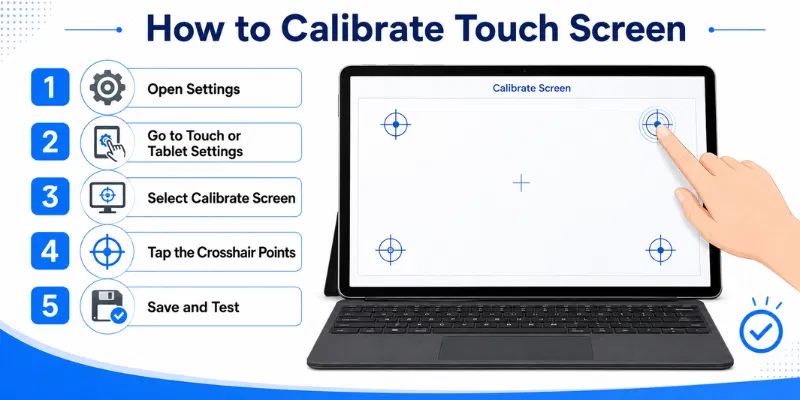
6. How to Calibrate Touch Screen on Windows Devices
Windows includes a built-in calibration tool for compatible touchscreen devices. It helps align your finger or stylus with the correct position on the display. Follow these five steps carefully and keep your device on a stable surface during the process.
1. Open the Calibration Tool
Press the Windows key and type Calibrate in the search box. Select Calibrate the screen for pen or touch input from the results. This will open the Tablet PC Settings window.
2. Select the Correct Display
Choose the touchscreen you want to calibrate. This step is important when your computer is connected to multiple monitors. Make sure the calibration is applied to the correct display.
3. Start Touch Calibration
Click the Calibrate button and select Touch input when asked. Choose pen input only when you want to calibrate a compatible digital pen.
4. Tap Each Calibration Point
Tap the centre of every crosshair that appears on the screen. Do not rush or press too hard. Continue until Windows completes all calibration points.
5. Save and Test the Results
Save the new calibration data when prompted. Tap icons, small buttons, corners, and edges to check the accuracy. Use the Reset option in Tablet PC Settings if the new calibration makes the response worse.
7. How to Calibrate Touch Screen on Android Devices
Most modern Android phones do not include a traditional manual calibration tool. Instead, you can improve touch accuracy by cleaning the screen, adjusting sensitivity, updating the device, and checking for software problems. The exact settings may vary depending on your phone brand and Android version.
1. Clean and Inspect the Screen
Clean the display with a soft microfiber cloth and make sure it is completely dry. Remove gloves, stickers, and a damaged screen protector. Also check the screen for cracks or physical damage.
2. Restart Your Android Device
Press and hold the power button, then select Restart. A restart can remove temporary software errors affecting touch response. Test different screen areas after the device turns on again.
3. Adjust Touch Sensitivity
Open Settings and look for Display, Display and touch, or Touch sensitivity. Enable Screen protector mode when you use a screen protector, or adjust available sensitivity settings. This option is only available on certain Android devices.
4. Install Software Updates
Open Settings and go to System or About phone. Select Software update and install any available updates. Updates may fix touchscreen bugs and improve device performance.
5. Test in Safe Mode
Restart the phone in Safe Mode and check the touchscreen response. If the screen works correctly, a downloaded app may be causing the problem. Remove recently installed apps one by one and restart the phone normally.
If these steps do not improve touch accuracy, the screen protector, digitizer, or touchscreen hardware may be damaged. In that case, contact the device manufacturer or a qualified repair technician.
8. How to Calibrate Touch Screen on iPhone and iPad
iPhones and iPads do not provide a traditional touchscreen calibration tool. Their capacitive screens are calibrated automatically, but you can improve touch response through cleaning, restarting, settings, and software updates. Follow these five steps to troubleshoot inaccurate or delayed touch input.
1. Clean and Inspect the Screen
Clean the display with a soft, dry microfiber cloth. Remove moisture, dirt, fingerprints, and any debris from the screen. Also check for cracks or other physical damage.
2. Remove the Case and Protector
Temporarily remove the device case and screen protector. A thick, damaged, or poorly fitted protector may affect touch response. Test the screen again after removing these accessories.
3. Restart Your Device
Restart your iPhone or iPad to clear temporary software problems. After restarting, tap different icons, corners, and screen edges. Check whether the touch response has improved.
4. Adjust Touch Accommodations
Open Settings, go to Accessibility, select Touch, and then open Touch Accommodations. You can adjust options such as Hold Duration, Ignore Repeat, and Tap Assistance. Only enable these features when they match your touch-control needs.
5. Update and Test the Device
Install the latest available iOS or iPadOS update and test the entire screen again. Check tapping, scrolling, typing, and multi-touch gestures. When certain areas remain unresponsive, the screen may need professional service rather than calibration.
9. How to Calibrate Touch Screen in POS and Industrial Systems
POS terminals and industrial touchscreens often use resistive or specialized touch technology. Their calibration process may vary by manufacturer, operating system, and control software. Follow these five general steps to improve touch alignment and accuracy.
1. Open the Calibration Utility
Go to the system settings, control panel, or touchscreen configuration menu. Look for an option such as Touch Calibration, Touch Panel Settings, or Align Screen. Some systems may require administrator access.
2. Select the Correct Touchscreen
Choose the touchscreen connected to the POS terminal or industrial machine. This is important when the system uses multiple displays. Confirm that touch input is assigned to the correct screen.
3. Start the Calibration Process
Select Calibrate or Recalibrate to begin. The system will display several targets or crosshairs on the screen. Use the normal input method, such as your finger, glove, or stylus.
4. Tap Each Target Carefully
Tap the centre of every target without rushing. Apply normal pressure, especially on resistive touchscreens. Avoid touching other parts of the display during the process.
5. Save and Test the Settings
Save the new calibration data and restart the system if required. Test buttons, menus, corners, and screen edges to check accuracy. Repeat the calibration or contact technical support if the touch remains misaligned.
10. Common Mistakes During Touch Screen Calibration
Small mistakes during calibration can reduce touch accuracy instead of improving it. Users should follow each step carefully and avoid rushing the process. Correct preparation helps the screen detect finger or stylus input properly. Avoid these common calibration mistakes.
- Calibrating without cleaning the screen first
- Tapping outside the target’s exact centre
- Applying too much pressure while tapping
- Moving the device during the process
- Selecting the wrong connected touchscreen display
- Using an incompatible or damaged stylus
- Ignoring cracks, moisture, or physical damage
- Forgetting to save the calibration settings
- Calibrating repeatedly without testing the results
- Expecting calibration to repair hardware problems
11. What to Do If Touch Screen Calibration Does Not Fix the Problem
If calibration does not improve touch accuracy, the problem may come from drivers, software, accessories, or damaged hardware. Try a few additional checks before replacing the screen. These steps can help identify the real cause of poor touch response.
- Restart the device and test again
- Update or reinstall touchscreen drivers
- Remove the case and screen protector
- Check for cracks or water damage
- Test the screen in Safe Mode
- Reset touchscreen settings to default
- Contact a qualified repair technician
Touch screen calibration matches your touch position with the correct location on the display. It helps improve accuracy when taps register in the wrong place. Calibration does not repair physical screen damage.
You may notice that the wrong icon opens after tapping. The screen edges or small buttons may also become difficult to use. A misaligned stylus pointer is another common sign.
Yes, many Windows touchscreen devices include a built-in calibration tool. You can find it by searching for pen or touch input calibration. Follow the targets carefully and save the new settings.
Most modern Android phones do not include traditional manual calibration. You can improve touch response by cleaning the screen, restarting the device, and adjusting sensitivity settings. Software updates may also fix touchscreen problems.
iPhones and iPads do not provide a manual calibration tool. Their capacitive screens are automatically calibrated by the system. Cleaning, restarting, updating, and checking Touch Accommodations may improve response.
Use a Touch Screen Tester to check the centre, corners, edges, and different touch points. Try tapping, scrolling, drawing, and multi-touch gestures. Repeat calibration only if the screen remains misaligned.
First, Test your Touch Screen after removing the case and screen protector. Update the drivers, restart the device, and check for cracks or moisture. Contact a technician if the touchscreen still does not respond correctly.
Conclusion
So guys, in this article, we’ve covered How to Calibrate Touch Screen in detail. Proper calibration can improve touch accuracy, correct misaligned taps, and make your device easier to use. Personally, I recommend cleaning the screen, restarting the device, and checking for physical damage before starting calibration. Follow the correct steps for your device and test the complete screen after finishing.

- Be Respectful
- Stay Relevant
- Stay Positive
- True Feedback
- Encourage Discussion
- Avoid Spamming
- No Fake News
- Don't Copy-Paste
- No Personal Attacks
- Be Respectful
- Stay Relevant
- Stay Positive
- True Feedback
- Encourage Discussion
- Avoid Spamming
- No Fake News
- Don't Copy-Paste
- No Personal Attacks
