What is Dead Pixel and How it Looks Like?
Published: 23 Oct 2026
Have you noticed a tiny black dot on your screen that does not disappear even after cleaning or restarting the device? It may be a dead pixel, a stuck pixel, or another small display defect. Learning What Is Dead Pixel can help you understand the difference and check whether the problem is temporary or permanent. This article explains everything in simple and beginner-friendly words.
1. What Is a Dead Pixel?
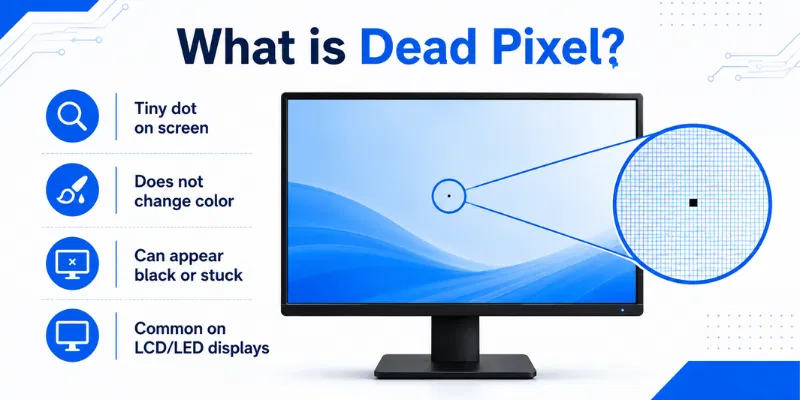
A dead pixel is a tiny point on a digital screen that no longer displays the correct color. It commonly appears as a permanent black dot because the pixel or its internal transistor has stopped working. A single pixel contains red, green, and blue subpixels that combine to create different colors. When all three subpixels fail, the pixel remains dark even when the image changes. Dead pixels can appear on monitors, laptops, smartphones, tablets, and televisions. They are usually hardware-related and may require warranty replacement or screen repair if they become distracting.
2. Working of a Dead Pixel
A screen creates images through millions of tiny pixels, and each pixel contains red, green, and blue subpixels. These subpixels receive electrical signals that control their brightness and color. When the transistor or electrical connection of a pixel fails, the affected pixel stops receiving the correct signal. As a result, it cannot change color with the image and usually remains black. In some cases, only one subpixel fails, causing the point to appear red, green, or blue instead. A true dead pixel is usually a hardware problem and often remains permanent.
3. What Does a Dead Pixel Look Like?
A dead pixel usually looks like a tiny black dot that remains in the same place on the screen. It does not change color when you open different images, videos, or applications. The mark is easier to notice on white, red, green, or blue backgrounds. It may appear in the centre, corners, or edges of a monitor, laptop, phone, tablet, or TV. If only one subpixel fails, the dot may appear red, green, or blue instead of completely black. Cleaning the screen will not remove it because the problem is inside the display panel.
4. Types of Pixel Problems
Pixel problems can appear in different forms depending on which part of the pixel has failed. Some defects remain permanently black, while others stay bright or display only one color. Understanding each type can help you identify whether the issue may be temporary or permanent.
1. Dead Pixel
A dead pixel usually appears as a small black dot on the screen. It does not produce light or change color when the displayed image changes. This problem is commonly caused by a failed transistor or electrical connection and is often permanent.
2. Stuck Pixel
A stuck pixel remains fixed on one color, such as red, green, blue, or white. It happens when one or more subpixels stay active instead of changing normally. Unlike a dead pixel, a stuck pixel may sometimes be fixed with a pixel-refreshing tool.
3. Hot Pixel
A hot pixel appears brighter than the surrounding pixels and may look white or brightly colored. It is especially noticeable on dark or black backgrounds. This problem occurs when the pixel remains continuously active and produces too much light.
4. Dark Pixel
A dark pixel appears dimmer than the nearby screen area but may not be completely black. It can happen when one or more subpixels become weak or receive an incorrect signal. Dark pixels are often easier to notice on bright and solid-colored backgrounds.
5. Common Causes of Dead Pixels
Dead pixels can appear because of manufacturing defects, physical damage, electrical failure, or long-term screen use. In many cases, the problem affects only one tiny pixel while the rest of the display continues working normally. Understanding the cause can help you decide whether testing, warranty support, or screen replacement is needed.
1. Manufacturing Defects
A dead pixel may already be present when the screen leaves the factory. Small problems in the transistor, wiring, or pixel structure can prevent it from working correctly. This is why new screens should be checked during the return period.
2. Physical Pressure
Pressing the display too hard can damage the sensitive layers inside the panel. Heavy objects placed on a laptop or monitor may create the same problem. Excessive pressure can affect one pixel or a larger screen area.
3. Drops and Screen Impact
A fall or strong hit can damage internal screen connections even when the glass does not crack. The affected pixel may stop receiving the correct electrical signal. More pixel problems may appear if the impact damages a wider section.
4. Electrical or Transistor Failure
Every pixel depends on tiny electrical components to control its color and brightness. When a transistor or connection fails, the pixel may remain black and stop changing with the image. This type of failure is usually permanent.
5. Excessive Heat
High temperatures can weaken display components and internal connections. Poor ventilation and long use at maximum brightness may increase heat around the panel. Repeated overheating can raise the risk of pixel and backlight problems.
6. Age and Long-Term Use
Screen components naturally wear over time. Older displays may develop weak, dark, stuck, or dead pixels after many hours of use. The risk may increase when the screen is used continuously for years.
7. Water or Moisture Damage
Water can enter the display and damage pixel connections or electrical circuits. Moisture may create dead pixels, lines, dark patches, or wider screen failure. A water-damaged screen should be checked by a qualified technician.
6. Signs Your Screen Has a Dead Pixel
A dead pixel usually remains in the same position and does not change with the image. It may be easier to notice on bright or solid-colored backgrounds. These signs can help you confirm that the mark is inside the display rather than dirt on the surface.
- Tiny black dot stays in one place
- Pixel does not change with images
- Mark appears in every application
- Dot remains after restarting the device
- Solid backgrounds make it more visible
- Cleaning the screen does not remove it
- Screenshot does not capture the mark
7. How to Check for a Dead Pixel
You can check for a dead pixel by displaying solid colors across the entire screen. This makes black, bright, or incorrectly colored pixels easier to notice. Clean the display first so dust or dirt is not confused with a pixel defect.
- Clean the screen with microfiber cloth
- Increase brightness to a comfortable level
- Display a full white background
- Check black, red, green, and blue
- Inspect the centre, corners, and edges
- Confirm the mark stays in place
- Restart the device and test again
8. How to Test a Dead Pixel
Testing a dead pixel helps you confirm whether the mark is a screen defect, stuck pixel, or simple dirt. Use full-screen solid colors because each background makes different pixel problems easier to notice. Complete the test in a normally lit room and avoid pressing the screen.
1. Clean the Display
Turn off the device and clean the screen with a soft microfiber cloth. Remove dust, fingerprints, and small marks that may look like dead pixels.
2. Open a Pixel Testing Tool
Use a reliable Screen Tester or open full-screen solid-color images. Hide the browser menu, taskbar, notifications, and other screen elements.
3. Display a White Background
A white background makes black and dark pixels easier to identify. Carefully inspect the centre, corners, and edges of the display.
4. Check Red, Green, and Blue
Display red, green, and blue backgrounds one at a time. This helps identify a failed or stuck subpixel that does not show the correct color.
5. Display a Black Background
A black background helps reveal bright, white, or colored pixels. These may be hot or stuck pixels rather than completely dead pixels.
6. Confirm the Pixel’s Position
Restart the device and repeat the color test. A dead pixel will remain in exactly the same location regardless of the image or application.
7. Take a Screenshot
Take a screenshot while the mark is visible and open it on another device. If the mark does not appear in the screenshot, the problem is likely inside the display panel.
9. How to Fix a Dead Pixel
A truly dead pixel is usually caused by hardware failure and may not be repairable through software. However, users sometimes confuse dead pixels with stuck pixels, which may respond to simple troubleshooting. Try these safe methods before considering screen replacement.
1. Restart the Device
Restarting can clear temporary display errors and refresh the graphics system. After the device turns on, display solid colors again and check whether the pixel still remains in the same position.
2. Update Display Drivers
Outdated or corrupted display drivers may cause unusual screen behavior on computers and laptops. Install the latest official graphics and monitor drivers, restart the device, and repeat the pixel test.
3. Use a Pixel Refreshing Tool
A pixel-refreshing tool rapidly displays changing colors over the affected area. This method may help a stuck pixel return to normal, but it usually cannot repair a truly dead pixel.
4. Turn the Screen Off
Switch the screen off for several hours or overnight. This can sometimes help temporary image or subpixel problems. Test the display again after turning it back on.
5. Use Built-In Pixel Refresh
Some OLED TVs and monitors include a pixel-refresh or panel-care feature. Run it only according to the manufacturer’s instructions because unnecessary repeated use may increase panel wear.
6. Avoid Pressing the Screen
Do not press, rub, or tap the pixel forcefully. Excessive pressure can damage nearby pixels, internal layers, or the complete display panel.
7. Check Warranty or Repair Options
When the pixel remains black after testing, it is likely a permanent hardware defect. Review the manufacturer’s dead-pixel policy and contact the seller or an authorized technician for replacement options.
A dead pixel is a tiny screen point that no longer works correctly. It usually appears as a permanent black dot. The rest of the display may continue working normally.
A dead pixel normally remains black because it produces no light. A stuck pixel stays fixed on red, green, blue, or white. Stuck pixels may sometimes be fixed, while dead pixels are usually permanent.
A truly dead pixel is generally caused by hardware failure. Software and color-refreshing tools usually cannot repair it. Screen replacement may be required when the defect becomes distracting.
A single dead pixel normally remains in the same location. However, impact, moisture, or wider panel damage may affect nearby pixels. Growing dark areas should be checked by a technician.
Pressing the display is not a safe repair method. It can damage nearby pixels or the internal screen layers. Use safe testing methods and check the warranty instead.
Display white, black, red, green, and blue backgrounds in full-screen mode. A dead pixel will remain dark and stay in exactly the same position. Clean the display first to ensure the mark is not dirt.
Warranty coverage depends on the manufacturer’s pixel policy. Some companies require several defective pixels before offering replacement. Check the return period and warranty conditions as soon as you notice the problem.
Conclusion
So guys, in this article, we’ve covered What Is Dead Pixel in detail. A dead pixel usually appears as a small black dot that remains in the same position, while a stuck pixel may stay red, green, blue, or white. Personally, I recommend testing the screen with solid colors before trying any repair method because true dead pixels are usually permanent. Check your warranty or return policy and take the right action before the defect becomes more distracting.

- Be Respectful
- Stay Relevant
- Stay Positive
- True Feedback
- Encourage Discussion
- Avoid Spamming
- No Fake News
- Don't Copy-Paste
- No Personal Attacks
- Be Respectful
- Stay Relevant
- Stay Positive
- True Feedback
- Encourage Discussion
- Avoid Spamming
- No Fake News
- Don't Copy-Paste
- No Personal Attacks
