What is Screen Bleeding & How Screen Bleeding Looks Like?
Published: 3 Nov 2026
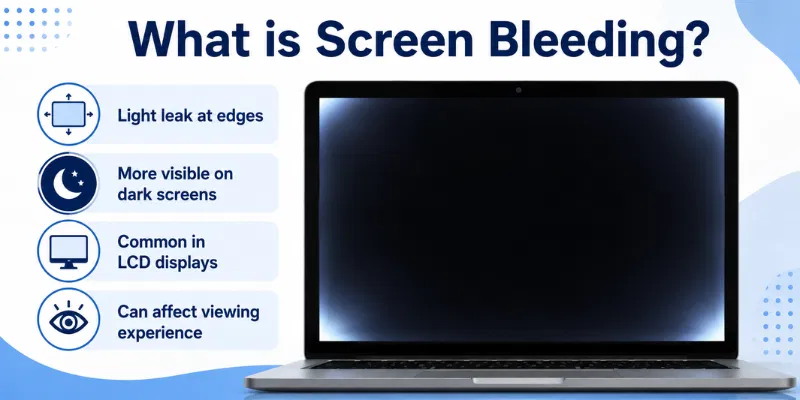
Screen Bleeding is a common display issue that mainly affects LCD monitors, laptops, and televisions. It appears when backlight escapes from the edges or corners of the panel, creating bright patches on dark backgrounds. Minor Backlight Bleeding may be normal, but severe cases can affect movies, games, and everyday viewing. Understanding its causes and signs can help you decide whether the screen needs adjustment, repair, or replacement.
1. What Is Screen Bleeding?
Screen Bleeding is a display issue in which light from the screen’s backlight escapes unevenly around the edges or corners of the panel. It is most commonly seen on LCD monitors, laptops, and televisions because these screens use a backlight to produce images. The problem becomes easier to notice when the display shows a black or very dark background.
Backlight Bleeding usually appears as bright white, yellowish, or cloudy patches near the screen borders. In mild cases, it may only be visible in a dark room at high brightness. In severe cases, it can affect movies, games, and other dark content by making black areas look uneven. It is mainly a hardware-related issue and cannot usually be removed through software settings alone.
2. How Does Screen Bleeding Happen?
Screen Bleeding happens when the backlight inside an LCD panel passes unevenly through the screen layers. LCD screens cannot produce their own light, so they use a backlight placed behind the display. When the panel layers, frame, or edge seals do not control this light properly, brighter patches become visible around the corners or borders.
1. Uneven Pressure Around the Panel
The screen bezel and internal frame hold the display layers together. When some areas are pressed more tightly than others, the pressure can affect how evenly the backlight spreads. This may create bright patches near the edges or corners. Uneven pressure can develop during manufacturing, assembly, or physical handling.
2. Poor Edge Sealing
LCD panels contain several thin layers that must be sealed correctly around the edges. Weak or uneven sealing allows extra light to escape through certain areas. This is one of the most common reasons for Backlight Bleeding. The leakage becomes especially noticeable when the screen displays black or dark content.
3. Panel Layer Misalignment
The internal layers of a display must remain properly aligned to control light and produce an even image. A small alignment problem can allow more light to pass through one part of the screen than another. As a result, some areas appear brighter even when the entire display should be dark.
4. Tight Bezels or Screws
Overtightened screws or a very tight screen frame can place extra pressure on the panel. This pressure may change the position of the display layers and create visible light leakage. It is commonly seen near the corners where the frame holds the panel firmly. Users should not loosen screen screws themselves because this may damage the device or void its warranty.
5. Screen Flexing or Bending
Thin laptop lids and portable monitors can flex when they are opened, carried, or handled incorrectly. Repeated bending may disturb the panel layers or increase pressure around certain areas. This can make existing Screen Bleeding more visible or create new bright patches. Using a protective sleeve and handling the display carefully can reduce this risk.
6. Physical Impact or Damage
Dropping the device or hitting the screen can affect its internal alignment without creating a visible crack. The impact may loosen the panel, damage the frame, or change pressure around the edges. Light may then escape through the affected area. Bleeding caused by physical damage is more likely to require professional repair.
7. Manufacturing Quality
Some display panels leave the factory with minor light leakage because of differences in materials, assembly, or quality control. Budget screens may have less consistent panel fitting, although expensive models can also experience the issue. Mild bleeding is often considered normal, but severe bright patches may qualify for a return or warranty replacement.
High brightness does not usually cause Screen Bleeding, but it can make the problem much easier to notice. Dark rooms and black backgrounds also reveal uneven light more clearly.
3. What Does Screen Bleeding Look Like?
Screen Bleeding usually appears as bright white, grey, yellowish, or cloudy patches around the edges and corners of an LCD screen. It becomes most visible when the display shows a black or very dark image. On bright or colourful content, the problem may be difficult to notice because the normal screen light hides the uneven areas.
1. Bright Patches Near the Edges
The most common sign is a bright area along one or more screen borders. These patches may appear narrow or spread across a larger section of the edge. They usually remain in the same position, even when the image on the screen changes.
2. Glowing Screen Corners
Some screens show stronger light in one or more corners. The glow may look white, pale yellow, or slightly grey. It is often more noticeable during dark movie scenes, games, or loading screens.
3. Uneven Black Backgrounds
A healthy LCD screen should display a reasonably even black image. When Backlight Bleeding is present, some parts look brighter than others. The affected areas may make the black background appear grey, washed out, or uneven.
4. Cloudy or Soft Light Areas
In some cases, the light does not have a sharp shape. Instead, it appears as a soft cloudy patch near the edge or corner. This can make dark scenes look faded and reduce the overall contrast of the display.
5. Fixed Bright Areas
The bright patches usually stay in the same location. They do not move with windows, videos, or images. This helps separate the issue from software glitches, reflections, and temporary image problems.
6. More Visible at High Brightness
Increasing the screen brightness makes the uneven light easier to see. At lower brightness levels, mild bleeding may become less noticeable. However, changing the brightness only hides the appearance and does not repair the panel.
7. Easier to Notice in a Dark Room
Room lighting has a major effect on visibility. In a bright room, minor light leakage may be difficult to detect. In a dark room, the glowing edges and corners become much clearer, especially on a full black screen.
Mild Screen Bleeding may only appear during testing and may not affect normal use. However, strong bright patches that distract you during movies, gaming, or everyday work may indicate a more serious panel-quality issue.
4. Common Types of Screen Bleeding
Screen Bleeding can appear in different shapes and areas depending on the panel design, internal pressure, and backlight position. Some types affect only the corners, while others spread across wider parts of the display. Understanding each type can help you identify the issue correctly and avoid confusing it with IPS glow or other screen problems.
1. Edge Bleeding
Edge bleeding appears as bright light along one or more sides of the screen. It may look like a thin glowing line or a wider bright patch near the border. This type is commonly caused by uneven panel sealing or pressure from the bezel. It becomes easier to notice on black backgrounds and in dark rooms.
2. Corner Bleeding
Corner bleeding creates bright patches in one or more corners of the display. The affected area may appear white, yellowish, or grey, depending on the screen and viewing conditions. Tight frame pressure and uneven panel fitting are common causes. Mild corner bleeding may not affect normal use, but severe patches can be distracting during dark scenes.
3. Clouding
Clouding appears as soft, cloudy, or uneven bright areas across the screen. Unlike edge bleeding, it may also affect the centre or larger sections of the panel. This form of Backlight Bleeding is commonly noticed on large televisions and monitors. It can reduce contrast and make black scenes look washed out.
4. Flashlighting
Flashlighting appears as cone-shaped beams of light coming from the corners or edges. The bright area may look like a flashlight shining toward the centre of the screen. It is especially visible during dark movies, games, or loading screens. Uneven pressure and poor backlight control are common reasons for this problem.
The appearance and severity of each type can vary from one display to another. Minor light leakage may only be visible during testing, while stronger patches can affect regular viewing.
5. Common Causes of Screen Bleeding
Screen Bleeding usually develops when the backlight inside an LCD panel is not controlled evenly. The problem may come from manufacturing, panel pressure, physical damage, or normal wear over time. Some causes create only mild light leakage, while others can make bright patches more noticeable during dark scenes.
1. Manufacturing Defects
Some screens leave the factory with uneven panel fitting or weak edge sealing. Small differences in assembly can allow extra light to escape around the corners or borders. This is why Backlight Bleeding may appear even on a brand-new monitor, laptop, or television.
2. Uneven Bezel Pressure
The bezel is the frame that surrounds and holds the screen panel. When it presses too tightly on certain areas, it can disturb the internal display layers. This uneven pressure may create bright patches, especially near the corners and edges.
3. Overtightened Screws
Screws inside the screen frame help keep the panel secure. If they are tightened too much, they can place unnecessary pressure on the display. This may affect how the backlight spreads and cause visible light leakage around specific areas.
4. Poor Panel Sealing
LCD panels contain several thin layers that must be sealed correctly. Weak, loose, or uneven sealing can allow backlight to escape from the sides. The affected area usually looks brighter when the screen displays black or dark content.
5. Physical Impact
A drop, hit, or sudden impact can disturb the alignment of the panel layers. The screen may develop Screen Bleeding even when there is no visible crack. Damage caused by impact may remain permanent and often requires professional inspection.
6. Screen Flexing or Bending
Thin laptop lids and portable screens can bend slightly during opening, closing, or transportation. Frequent flexing may change the pressure around the panel and make light leakage worse. Carrying a laptop without proper protection can increase this risk.
7. Poor Handling During Transportation
Rough delivery, heavy pressure, or improper packaging can damage the internal screen structure. The device may look normal from the outside while the panel has shifted slightly inside. This can cause bright corners or uneven edges after the screen is turned on.
8. Panel Ageing
The materials inside a display can weaken as the screen becomes older. Adhesive, edge seals, and internal layers may slowly lose their original position. As a result, older displays may develop new light leakage or show stronger bleeding than before.
9. Excessive Heat
High temperatures can affect the frame, adhesive, and internal display layers. Regular exposure to heat may cause slight expansion or movement inside the panel. This can increase uneven pressure and make Backlight Bleeding more noticeable.
10. Poor Build Quality
Low-quality panels may use weaker materials or less accurate assembly methods. This can result in uneven frames, loose sealing, and inconsistent backlight control. However, expensive displays can also experience the issue because panel quality can vary between individual units.
High brightness is not usually the direct cause of Screen Bleeding. However, it makes existing bright patches much easier to notice, especially in a dark room or on a completely black background.
6. How to Check for Screen Bleeding
You can check Screen Bleeding by displaying a completely black background in a dark room. This makes bright patches, glowing corners, and uneven edges easier to notice. Before starting, clean the display and use the screen from your normal viewing position so reflections, dust, or IPS glow do not affect the result.
1. Clean the Screen
Turn off the device and gently clean the display with a soft microfiber cloth. Dust, fingerprints, and smudges can look like cloudy areas, especially on dark backgrounds. Avoid spraying cleaning liquid directly onto the screen because moisture may enter around the edges.
2. Use a Dark Room
Turn off nearby lights, close curtains, and reduce reflections around the display. Backlight Bleeding is much easier to identify in a dark environment because bright areas stand out clearly against black content. However, complete darkness may make very minor bleeding appear worse than it looks during normal use.
3. Display a Full Black Background
Open a completely black image or use a trusted Screen tester in full-screen mode. Hide the taskbar, browser controls, notifications, and other interface elements. A full black background helps you see whether light is escaping unevenly from the panel edges or corners.
4. Set a Normal Brightness Level
Start the test at the brightness level you normally use. Then check the screen again at low, medium, and high brightness. Screen Bleeding often becomes more visible at maximum brightness, but testing only at the highest level may exaggerate a minor issue.
5. Inspect All Four Edges
Look carefully along the top, bottom, left, and right sides of the screen. Search for white, grey, or yellowish patches that remain fixed in the same location. Compare each edge because one side may have stronger light leakage than the others.
6. Check Every Corner
Screen corners are common areas for visible light leakage. Look for glowing patches or cone-shaped beams extending toward the centre. Strong corner brightness may indicate corner bleeding or flashlighting.
7. Change Your Viewing Angle
Move slightly to the left, right, up, and down while observing the affected area. If the glow changes significantly as your position changes, it may be IPS glow rather than Screen Bleeding. True bleeding usually stays in a fixed position, although its visibility may change slightly with the angle.
8. Test From a Normal Distance
Do not inspect the screen from only a few centimetres away. Sit at the distance you normally use for working, gaming, or watching content. A small bright patch visible only during close inspection may not affect normal viewing.
9. Compare Different Dark Content
After the black-screen test, open a dark movie scene, game, or image. Check whether the bright areas remain distracting during real content. This helps you judge whether the problem is only noticeable during testing or affects everyday use.
10. Take a Clear Photo
Use a camera to record the affected areas if the bleeding appears severe. Keep the camera exposure close to what your eyes actually see because automatic night modes can make the problem look much worse. Clear photos can help when contacting the seller or submitting a warranty claim.
11. Repeat the Test Later
Test the screen again after it has warmed up for 20 to 30 minutes. Some displays may look slightly different when they first turn on. Repeating the test also helps confirm that the bright patches remain in the same locations.
Minor Backlight Bleeding may be visible only on a black screen in complete darkness and may not affect normal use. However, large or distracting bright patches that remain visible during movies, gaming, or everyday work may justify a return, repair, or warranty replacement.
Minor light leakage is common on many LCD screens. It may only appear on a black background in a completely dark room. However, large bright patches that affect normal viewing may indicate a panel defect.
Screen Bleeding is usually a hardware-related issue, so software cannot completely repair it. Lowering brightness and improving room lighting may make it less noticeable. Severe cases may require professional repair or screen replacement.
Mild bleeding often remains unchanged for a long time. Physical pressure, heat, bending, or impact may make it worse. Monitor the affected areas and avoid placing pressure on the display.
Screen Bleeding usually remains fixed near the edges or corners. IPS glow changes when you adjust your viewing position or angle. IPS glow is a normal feature of IPS panels, while severe bleeding may be a manufacturing defect.
OLED screens do not use a traditional backlight. Therefore, they do not experience Backlight Bleeding in the same way as LCD panels. However, OLED displays may develop other issues such as uneven brightness or image retention.
Consider returning it when bright patches affect movies, games, or everyday work. Check the issue at your normal brightness and viewing distance before deciding. Contact the seller before the return period expires.
Pressing the panel may temporarily change how the bright area looks. However, it can damage the display layers and create dead pixels or dark marks. Avoid rubbing or pressing the screen and contact authorized support instead.
Conclusion
So guys, in this article, we’ve covered Screen Bleeding in detail. This display issue usually appears as bright patches around the corners or edges, especially on dark backgrounds. Personally, I recommend checking the screen at your normal brightness and viewing distance before deciding whether the problem is serious. Use a black-background test screen today and contact the seller if the light leakage affects regular viewing.

- Be Respectful
- Stay Relevant
- Stay Positive
- True Feedback
- Encourage Discussion
- Avoid Spamming
- No Fake News
- Don't Copy-Paste
- No Personal Attacks
- Be Respectful
- Stay Relevant
- Stay Positive
- True Feedback
- Encourage Discussion
- Avoid Spamming
- No Fake News
- Don't Copy-Paste
- No Personal Attacks
